How to Clone Laptop HDD to SSD in Ahmedabad: 30-Min Doorstep Guide, Tools, BitLocker & Data Liability Policy
Data Cloning & Migration•October 2026•31 min Read•
Zitek Hardware Team
HDD to SSD CloningZitek Techcare
When your laptop's mechanical hard drive begins grinding to an agonizing crawl, the fear of losing years of critical business documents, accounting ledgers in Tally Prime, custom email configurations in Microsoft Outlook, and complex software installations often prevents users from upgrading to a lightning-fast Solid State Drive (SSD). The traditional belief that replacing your hard drive requires a complete "clean format"—wiping all your data, losing genuine Windows activation keys, and spending days hunting down software installers—is completely obsolete in modern computer engineering.
Through advanced 1-to-1 Bitwise Hardware Cloning, you can seamlessly migrate your exact operating system state, active Windows licenses, desktop configurations, customized application settings, and file directories directly from an old, slow mechanical HDD onto a new high-speed NVMe or SATA SSD in less than 30 minutes.
In this authoritative, engineering-grade walkthrough, senior mobile hardware technicians at Zitek provide an exhaustive guide on how drive cloning works in Ahmedabad and Gandhinagar. We examine standalone hardware cloning docks versus software sector imaging (Macrium Reflect, Acronis True Image, Clonezilla), critical pre-cloning preparation (BitLocker suspension, SMART bad sector audits), crucial post-cloning optimizations (4K sector alignment, TRIM activation, partition expansion), semiconductor spot price volatility terms, transforming your old drive into a portable USB 3.0 external disk, and our strict Customer Data Liability & Backup Policy.
Authentic hardware cloning bench at Zitek Ahmedabad displaying high-speed standalone dual-bay SATA/NVMe hardware duplicators cloning a customer laptop drive live on-site.
Direct Answer: How Does Doorstep Live Drive Cloning Work in Ahmedabad?
💡 સિનિયર એન્જિનિયર ગાઇડ: અમદાવાદમાં ફોર્મેટ કર્યા વગર લેપટોપ ડ્રાઇવ ક્લોનિંગ કેવી રીતે થાય છે?
લાઇવ લેપટોપ ડ્રાઇવ ક્લોનિંગ એટલે જૂની હાર્ડ ડ્રાઇવમાં રહેલા તમામ ડેટા, વિન્ડોઝ ઓપરેટિંગ સિસ્ટમ, ઇન્સ્ટોલ કરેલા સોફ્ટવેર અને બૂટ સેક્ટર્સનું નવા SSD પર હૂબહૂ સેક્ટર-બાય-સેક્ટર ડુપ્લિકેશન. અમદાવાદમાં Zitek આ સર્વિસ તમારા ઘરે કે ઓફિસે માત્ર ૩૦ થી ૪૫ મિનિટમાં કરી આપે છે:
હાર્ડવેર ડુપ્લિકેટર: સોફ્ટવેર ડ્રાઇવરના બદલે સ્ટેન્ડઅલોન ડ્યુઅલ-બે હાર્ડવેર ક્લોનિંગ મશીન દ્વારા સીધું સેક્ટર-લેવલ ક્લોનિંગ થાય છે.
ઝીરો રી-ઇન્સ્ટોલેશન: ઓરિજિનલ વિન્ડોઝ 10/11 લાઇસન્સ, MS Office, Tally Prime એકાઉન્ટિંગ ડેટાબેઝ, AutoCAD સેટિંગ્સ અને બ્રાઉઝર પાસવર્ડ્સ નવા SSD પર એ જ રીતે ચાલુ થઈ જાય છે.
સ્પીડમાં જંગી વધારો: લેપટોપ શરૂ થવાનો સમય ૨-૩ મિનિટથી ઘટીને માત્ર ૧૨ થી ૧૫ સેકન્ડ થઈ જાય છે અને એપ્સ તરત જ ઓપન થાય છે.
અમદાવાદમાં ખર્ચ: ૧-ટુ-૧ હાર્ડવેર ક્લોનિંગ, ઇન્ટરનલ ફેન ક્લીનિંગ અને નવી 256GB કે 512GB SSD સાથે કમ્પ્લીટ પેકેજ ₹૧,૪૯૯ થી ₹૩,૮૫૦ માં ઉપલબ્ધ છે, સાથે સત્તાવાર ૩ થી ૫ વર્ષની કંપની વૉરંટી મળે છે.
🛡️ ડેટા અંગે સ્પષ્ટતા: ક્લોનિંગ કાર્યરત ડેટાને સુરક્ષિત ટ્રાન્સફર કરે છે, પરંતુ ડેટા બેકઅપની ૧૦૦% સંપૂર્ણ જવાબદારી ગ્રાહકની પોતાની રહેશે. જૂની ડ્રાઇવમાં અગાઉથી રહેલા બેડ સેક્ટર્સ માટે ટેકનિશિયનની કોઈ જવાબદારી રહેશે નહીં.
કમ્પ્યુટર સ્ટોરેજ ડ્રાઇવ્સ (2.5" SATA III, mSATA, M.2 NVMe PCIe) માં વપરાતા 3D NAND ફ્લેશ ચિપ્સના ભાવો આંતરરાષ્ટ્રીય સ્પોટ માર્કેટ, વૈશ્વિક સર્વર ડિમાન્ડ અને કરન્સી રેટ મુજબ બદલાતા રહે છે:
દૈનિક સ્પોટ રેટ મુજબ ભાવો: આ ગાઈડમાં દર્શાવેલા ક્લોનિંગ અને SSD અપગ્રેડના ભાવો સામાન્ય માર્કેટ સ્થિતિ દર્શાવે છે. આજના ચોક્કસ લાઇવ સ્પોટ રેટ, ઉપલબ્ધ બ્રાન્ડ્સ (Crucial, Western Digital, Samsung) અને ડોરસ્ટેપ ચાર્જ જાણવા માટે Zitek એન્જિનિયર સાથે ફોન કે વોટ્સએપ પર પુષ્ટિ કરવી જરૂરી છે.
સત્તાવાર ૩ થી ૫ વર્ષની વૉરંટી: કોઈપણ ડ્રાઇવ પર "લાઇફટાઇમ વૉરંટી" નો ખોટો દાવો હોતો નથી. તમામ જેન્યુઇન ડ્રાઇવ્સ સત્તાવાર ૩ વર્ષથી ૫ વર્ષની બ્રાન્ડ રિપ્લેસમેન્ટ વૉરંટી ધરાવે છે.
૧૦૦% પાકું GST બિલિંગ: તમામ ટ્રાન્ઝેક્શનમાં કાયદેસર પાકું GST ઇન્વોઇસ સામેલ હોય છે જેથી ભવિષ્યમાં કોઈપણ ઓથોરાઇઝ્ડ સર્વિસ સેન્ટર પર વૉરંટી મેળવવામાં સરળતા રહે.
📍 અમદાવાદ અને ગાંધીનગરમાં ઓન-સાઇટ ડોરસ્ટેપ સર્વિસ ઉપલબ્ધ
🛡️ ગ્રાહક ડેટા સુરક્ષા અને બેકઅપ અંગેની નીતિ (કાયદેસર સ્પષ્ટતા)
ડેટા બેકઅપની ૧૦૦% સંપૂર્ણ જવાબદારી ગ્રાહકની પોતાની રહેશે:
લેપટોપ ક્લોનિંગ, સેક્ટર ડુપ્લિકેશન, MBR થી GPT કન્વર્ઝન કે હાર્ડવેર સર્વિસ કરાવતાં પહેલાં પોતાના મહત્વપૂર્ણ બિઝનેસ ડેટા, Tally Prime ડેટાબેઝ, GST રિટર્ન ફાઇલ્સ અને અકાઉન્ટિંગ લેજર્સનો બેકઅપ લેવાની ૧૦૦% સંપૂર્ણ જવાબદારી ગ્રાહકની પોતાની છે. અગાઉથી જૂની 5400RPM મિકેનિકલ ડ્રાઇવમાં રહેલા બેડ સેક્ટર્સ (Bad Sectors), ચુંબકીય સપાટી ડેમેજ કે અનપેક્ષિત રીડ એરરના કારણે ડેટા કોપી ન થાય કે કરપ્ટ થાય તો તે માટે Zitek, તેના સંચાલકો કે ફિલ્ડ ટેકનિશિયનની કોઈ કાયદેસર, આર્થિક કે નૈતિક જવાબદારી રહેશે નહીં.
ડેટા બેકઅપની ૧૦૦% સંપૂર્ણ જવાબદારી ગ્રાહકની પોતાની રહેશે
લેપટોપ ક્લોનિંગ, સેક્ટર ડુપ્લિકેશન, MBR થી GPT કન્વર્ઝન કે હાર્ડવેર મેઇન્ટેનન્સ કરાવતાં પહેલાં પોતાના મહત્વપૂર્ણ બિઝનેસ ડેટા, Tally Prime ડેટાબેઝ, GST રિટર્ન ફાઇલ્સ અને અકાઉન્ટિંગ લેજર્સનો બેકઅપ લેવાની ૧૦૦% સંપૂર્ણ જવાબદારી ગ્રાહકની પોતાની છે. અગાઉથી જૂની 5400RPM મિકેનિકલ ડ્રાઇવમાં રહેલા બેડ સેક્ટર્સ (Bad Sectors), ચુંબકીય સપાટી ડેમેજ કે અનપેક્ષિત રીડ એરરના કારણે ડેટા કોપી ન થાય કે કરપ્ટ થાય તો તે માટે Zitek, તેના સંચાલકો કે ફિલ્ડ ટેકનિશિયનની કોઈ કાયદેસર, આર્થિક કે નૈતિક જવાબદારી રહેશે નહીં.
Bitwise Cloning vs Clean Windows Installation: An Engineering Comparison
When upgrading to a Solid State Drive, computer owners face a fundamental choice: clone the existing drive or perform a clean operating system installation.
Below is an engineering comparison of both approaches:
Evaluation Parameter
1-to-1 Bitwise Live Drive Cloning
Clean Operating System Installation
Setup & Turnaround Time
25 to 45 minutes on-site
4 to 8 hours (plus manual application reinstallation)
Windows Digital License
100% preserved seamlessly
Requires manual reactivation via Microsoft account
Tally Prime & Accounting Databases
100% intact with exact local paths
Requires manual export/import and port re-binding
Installed Applications & Custom Drivers
All software works immediately upon boot
Must locate original license keys & offline installers
Browser Passwords, Cookies & Bookmarks
Exact browser sessions restored
Must manually re-login to all corporate portals
Old Registry Junk / Malware
Cloned over alongside valid OS
100% eliminated & fresh system state
Bad Sector Sensitivity
High (hardware errors halt copy)
None (starts on pristine NAND cells)
Best Use Case
Functioning systems needing speed
Severely infected or corrupted operating systems
When Cloning Is the Superior Strategy
If your laptop boots normally, has no malicious ransomware or corrupted registry hives, and houses complex accounting packages (such as Tally Prime, Busy, Marg ERP, or SAP GUI) with custom database port bindings, cloning is undeniably the best strategy. It eliminates hundreds of hours of reconfiguration, software re-authorization, and printer driver troubleshooting.
When a Clean Format Is Unavoidable
If your existing Windows installation frequently blue-screens with system kernel corruption (CRITICAL_PROCESS_DIED), suffers from persistent adware, or the old mechanical hard drive has thousands of unreadable physical bad sectors across the Windows system partition, cloning will merely copy that instability onto your new SSD. In such cases, our technicians perform a pristine, official UEFI Windows installation and manually transfer your uncorrupted user documents, photos, and spreadsheets.
Hardware Cloning Docks vs Software Utilities: Why We Use Dedicated Duplicators
Many computer users attempt to clone drives at home using free software utilities downloaded from the internet, only to experience crashes, corrupt partitions, or non-booting drives. Understanding the difference between hardware duplication and software imaging explains why:
Technical Feature
Software-Based Cloning (Macrium / Clonezilla)
Standalone Hardware Duplicators (Zitek Field Stations)
Zero file locks; direct physical sector-by-sector read/write
VSS Snapshot Dependency
Fails if Volume Shadow Copy Service times out
Bypasses operating system abstractions entirely
Sustained Transfer Throughput
Throttled by OS interrupts & antivirus scanning
Unthrottled direct SATA/NVMe PHY link (up to 450 MB/s sustained)
Bad Sector Handling
Freezes indefinitely at 99% on unreadable sectors
Intelligent algorithmic error-skipping continues transfer
Driver Overhead
Subject to USB sleep state disconnects
Direct hardware bus handshake with stabilized power delivery
1. The Pitfalls of Software-Based Cloning in Windows
When you execute cloning software inside an active Windows environment (such as Macrium Reflect, Acronis True Image, or EaseUS Disk Copy):
File System Locks: Windows actively locks critical system files (including SAM, SYSTEM registry hives, and pagefile.sys). The software must rely on Volume Shadow Copy Service (VSS). If VSS encounters a timing timeout, the clone aborts midway.
Driver & Interrupt Conflicts: Background antivirus updates, Windows telemetry, and power-saving USB sleep states can disconnect the target SSD midway through a 400GB transfer, leaving the drive in a RAW, unpartitioned state.
Bad Sector Stalling: If the source mechanical drive has degraded sectors, the Windows storage driver attempts to retry reading the failing sector hundreds of times before timing out, causing the cloning software to freeze indefinitely at 99%.
2. The Power of Standalone Hardware Duplicators
At Zitek, our mobile field engineers carry commercial standalone hardware cloning stations. These devices operate independently of any computer host:
Both the source HDD and target SSD plug directly into hardware SATA/NVMe slots powered by a dedicated high-efficiency power supply.
An onboard embedded microcontroller copies sectors at the physical hardware controller level at speeds up to 450 MB/s.
No files are locked, no operating system background processes interfere, and the copy is an authentic 100% bitwise physical clone.
Cloning Tools Comparison: Free Software vs Enterprise Hardware Stations
Before selecting a cloning methodology, our engineering team evaluated every leading drive imaging and duplication utility:
Duplication Tool / Hardware
Architecture Type
Host OS Isolation
Bad Sector Handling
Sector Alignment Automation
BitLocker Bypass Safety
Average 250GB Clone Time
Standalone Hardware Dock (Zitek)
Dedicated FPGA Microcontroller
100% Isolated (No Host OS)
Hardware ECC Auto-Skip
Native 4K Alignment
Preserves Physical Encrypted Blocks
18 to 25 Minutes
Macrium Reflect Home/Workstation
Windows VSS Snapshot Software
Host OS Active
Aborts on Read Errors
Excellent Automatic Alignment
Requires BitLocker Suspension
35 to 55 Minutes
Acronis Cyber Protect Home Office
Proprietary Driver Stack
Host OS Active
Retries 50x Before Failing
Good Automatic Alignment
Requires Pre-Decryption
40 to 60 Minutes
Clonezilla Live (Debian Linux)
Bootable Linux USB Environment
Independent Linux OS
Command-line -rescue mode
Manual Partition Boundary Setup
Bit-by-bit raw image required
45 to 70 Minutes
EaseUS Disk Copy / AOMEI Backupper
Windows Filter Driver
Host OS Active
Freezes on Bad Sectors
Basic Sector Alignment
Variable TPM Support
40 to 65 Minutes
Understanding Windows Partition Topology: EFI, MSR, C: Volume & WinRE
When our technician clones your hard drive, we are not simply copying files; we are mirroring an intricate, multi-partition GUID Partition Table (GPT) structure required by modern UEFI firmware:
Reserved for dynamic disk volume management and internal OS partitioning
Primary Windows Volume (C:)
Variable (150GB–2TB)
NTFS
ebd0a0a2-b9e5-4433-87c0-68b6b72699c7
Houses Windows system files, Program Files, Users profile directories, apps
Windows Recovery (WinRE)
500 MB to 1000 MB
NTFS (Hidden)
de94bba4-06d1-4d40-a16a-bfd50179d6ac
Contains Winre.wim recovery environment used for Automatic Startup Repair
If an inexperienced technician copies only the visible C: drive partition, the newly installed SSD will display "No Bootable Device Found - Error 0xc000000e" because the vital FAT32 EFI System Partition containing the bootloader pointers was left behind! Our standalone hardware duplicator clones the entire drive topology simultaneously, guaranteeing 100% boot success.
10 Common Drive Cloning Error Codes & Technical Command-Line Fixes
Error Code
Error Description
Root Hardware / Software Cause
Exact Command-Line Fix or Engineering Resolution
0x80042306
VSS Provider Error
Corrupted Volume Shadow Copy registry key
net stop vss -> net start vss -> re-register vssvc.exe DLLs
Delete extraneous OEM diagnostics volume before running mbr2gpt
0x80070002
The System Cannot Find The File Specified
Broken symbolic link in Windows Component Store
Run DISM /Online /Cleanup-Image /RestoreHealth prior to cloning
BitLocker-05
Drive Locked / Key Required
Motherboard TPM PCR hash mismatch upon first boot
Suspend BitLocker prior to cloning: Suspend-BitLocker -MountPoint C:
Critical Pre-Cloning Preparation: BitLocker, SMART Health & Drive Shrinking
Before our technician initiates the hardware cloning sequence, three vital engineering checks must be executed:
Diagnostic Pre-Check
Inspection Tool
Warning Signs / Red Flags
Technical Pre-Cloning Resolution
1. BitLocker Device Encryption
manage-bde -status C:
Encryption State: "Protection On"
Retrieve 48-digit key from Microsoft Account or execute Suspend-BitLocker
2. SMART Telemetry Health
CrystalDiskInfo / HWInfo
Reallocated / Pending Sector Count > 0
Assess bad sector count; recommend file backup if disk heads are failing
3. Partition Boundary Geometry
Windows Disk Management
Source drive partition > Target SSD capacity
Execute non-destructive diskpart shrink desired=X to fit SSD volume
1. Suspending Microsoft BitLocker Device Encryption
On modern laptops running Windows 10 Pro or Windows 11 Home/Pro (especially Dell Inspiron/Latitude and HP Envy models), drive encryption is frequently enabled automatically via your Microsoft account:
If an encrypted drive is cloned without preparation, the TPM (Trusted Platform Module) on your motherboard will detect the new SSD's unique hardware serial number and refuse to release the encryption keys, locking you out with a blue BitLocker Recovery Screen.
The Solution: Our technician verifies BitLocker status by running manage-bde -status C:. If protection is active, we assist you in retrieving your 48-digit BitLocker recovery key from your Microsoft cloud account, or we temporarily suspend protection using Suspend-BitLocker -MountPoint "C:" -RebootCount 0 during the hardware transition.
2. SMART Telemetry Health Audit
We connect your hard drive to our diagnostic suite to inspect Self-Monitoring, Analysis, and Reporting Technology (SMART) telemetry:
Attribute 05 (Reallocated Sectors Count): Indicates physical sectors that have failed and been remapped to spare sectors.
Attribute C5 (Current Pending Sector Count): Indicates unstable sectors waiting to be remapped due to read errors.
If a drive has a zero or low pending sector count, hardware cloning proceeds safely. If pending sectors exceed safe engineering thresholds, we immediately advise the customer to prioritize cold file backup rather than full disk cloning.
3. Partition Shrinking for Smaller Target SSDs
In many cases, a customer has a 1TB mechanical hard drive, but has only utilized 180GB of actual file space. They wish to upgrade to a cost-effective 256GB or 512GB SSD:
Because a physical bitwise clone cannot copy a 1,000GB partition structure onto a 500GB physical SSD without partition truncation, our engineer uses Windows Disk Management or non-destructive command-line tools (diskpart shrink desired=X) to safely shrink the C: volume boundary down to 200GB before initiating the clone.
Important Data Liability & Backup Policy (ડેટા જવાબદારી બાબતે સ્પષ્ટતા)
⚠️ Mandatory Data Liability & Legal Disclaimer (કાયદેસર સ્પષ્ટતા)
ડેટા બેકઅપની ૧૦૦% સંપૂર્ણ જવાબદારી ગ્રાહકની પોતાની રહેશે: લેપટોપમાં જૂની હાર્ડ ડ્રાઇવ (HDD) માંથી નવી સોલિડ સ્ટેટ ડ્રાઇવ (SSD) માં ડેટા ક્લોનિંગ, ડેટા ટ્રાન્સફર, પાર્ટિશન શ્રિન્ક કે વિન્ડોઝ માઇગ્રેશન કરાવતાં પહેલાં પોતાના અંગત, વ્યાપારી, ટેલી એકાઉન્ટિંગ (Tally Data) તથા અન્ય તમામ ફાઇલોનો બેકઅપ લેવાની સંપૂર્ણ જવાબદારી ગ્રાહકની પોતાની છે. અગાઉથી જૂની હાર્ડ ડ્રાઇવમાં રહેલા બેડ સેક્ટર્સ (Bad Sectors), પ્લેટર ડેમેજ, મેગ્નેટિક ડીગ્રેડેશન, રીડ/રાઈટ હેડ ક્રેશ કે ડેટા ક્લોનિંગ દરમિયાન હાર્ડવેર ફેલ્યોરના કારણે થતા કોઈપણ પ્રકારના ડેટા લોસ (Data Loss) માટે Zitek, કંપનીના સંચાલકો કે ફિલ્ડ ટેકનિશિયનની કોઈ કાયદેસર, આર્થિક કે નૈતિક જવાબદારી રહેશે નહીં.
Customer Backup Obligation: Mechanical hard drives are subject to gradual physical degradation. When a degraded drive is subjected to sustained, continuous read workloads across millions of sectors during the cloning process, existing magnetic weaknesses can cause final drive head failure. Customers are strictly instructed to create independent backups of their irreplaceable data on cloud storage (Google Drive, OneDrive) or external pendrives before our engineer begins work.
Essential Post-Cloning Technical Optimizations
A drive clone is not finished simply because the progress bar reaches 100%. To guarantee maximum performance, longevity, and storage capacity on the new SSD, our technician completes four essential post-cloning engineering tasks:
Optimization Step
Command / Registry Path
Engineering Purpose
Real-World Benefit
1. 4K Sector Alignment
wmic partition get StartingOffset
Aligns cluster boundaries to 4,096-byte NAND pages
Prevents Write Amplification; restores full 550 MB/s throughput
2. TRIM Activation
fsutil behavior query DisableDeleteNotify
Instructs SSD controller to wipe deleted blocks
Maintains sustained write performance over years of operation
3. Disable SysMain & Defrag
services.msc -> SysMain (Disabled)
Eliminates obsolete HDD background indexing
Reduces unnecessary NAND flash write wear cycles
4. Partition Geometry Extension
diskpart -> extend filesystem
Reclaims unallocated storage space on larger SSDs
Ensures 100% of newly purchased drive capacity is usable
1. Verifying 4K Sector Alignment
Mechanical hard drives historically utilized 512-byte physical sectors, whereas modern solid-state drives utilize 4,096-byte (4K) NAND page clusters:
If partition boundaries are misaligned, a single 4K operating system read or write request is forced to span two physical NAND flash pages. This causes severe Write Amplification, cutting SSD performance in half and reducing flash memory lifespan.
Our technician runs PowerShell and verifies: wmic partition get BlockSize, StartingOffset, Name
If the StartingOffset is evenly divisible by 4,096, 4K alignment is mathematically verified.
2. Verifying Windows TRIM Command Status
The TRIM command enables the Windows operating system to inform the SSD controller which data blocks are no longer considered in use and can be wiped internally during idle garbage collection cycles.
Without TRIM, write speeds on an SSD will degrade precipitously over several months.
We open Command Prompt as Administrator and run: fsutil behavior query DisableDeleteNotify
A returned value of 0 confirms that TRIM is actively functioning for both SATA and NVMe drives.
3. Disabling Windows SuperFetch (SysMain) and Defragmentation
Mechanical drives relied on Windows SuperFetch (now called SysMain) to preload frequently used software into RAM, and periodic disk defragmentation to physically rearrange scattered file fragments on spinning platters:
On an SSD, random access latency is 0.05ms, making SysMain unnecessary background overhead.
Furthermore, defragmenting an SSD is harmful because it causes unnecessary flash write cycles without any speed benefit. Our technician verifies that Windows Disk Optimizer has automatically switched to sending TRIM re-trim commands rather than traditional defragmentation.
4. Partition Expansion & Unallocated Space Recovery
When cloning from a smaller drive to a larger drive (e.g., from 250GB to 1TB), the cloned partition mirrors the old 250GB geometry, leaving 750GB as unallocated dark storage.
If a hidden OEM recovery partition sits directly adjacent to the C: drive, Windows Disk Management will gray out the "Extend Volume" button.
Our engineer uses non-destructive partition relocation tools to shift the recovery boundary to the end of the disk and safely expands the primary C: partition to consume 100% of the newly purchased SSD capacity.
Converting Your Old Mechanical Hard Drive into a High-Speed USB 3.0 External Drive
What happens to your original 1TB mechanical hard drive after our technician installs your blazing-fast new SSD? You do not need to throw it away or leave it sitting in a drawer!
Component
Function & Role
Operational Throughput
Practical Customer Benefit
Extracted 1TB Mechanical HDD
Houses untouched original system backup
5400 RPM Spindle
Zero risk: exact original system preserved offline
Aluminum USB 3.0 Enclosure (₹450–₹650)
Houses HDD with UASP protocol controller
5 Gbps USB 3.0 Bus
Portable external hard drive for movies, photos, and archives
Instant Plug-and-Play Compatibility: The drive plugs into any USB port on your laptop, desktop, smart TV, or office workstation with zero driver installations required.
Safety Net for Peace of Mind: Because your original hard drive remains 100% untouched and preserved exactly as it was on the day of the upgrade, you have an immediate offline physical backup of your entire historical system.
Massive Secondary Storage: You can use your new internal SSD exclusively for lightning-fast Windows 11 boot and primary applications, while keeping the 1TB external drive for high-capacity archives, video libraries, and family photo collections.
Preserving Corporate Software Licenses: Tally Prime, Marg, Busy & Windows
Ahmedabad is one of India's most vibrant commercial and industrial hubs, housing thousands of chartered accountants, textile manufacturers, stockbrokers, and pharmaceutical distributors in areas like Navrangpura, Ashram Road, Prahlad Nagar, and SG Highway. For these businesses, reformatting a laptop is a logistical nightmare because of complex software licenses:
Software Suite
License Authorization Mechanism
Cloning Preservation Strategy
On-Site Verification Step
Tally Prime / Tally.ERP 9
Local hardware disk serial lock (tally.lic)
Bitwise volume UUID mirror preserves path
Launch Tally; verify company data directory opens seamlessly
Marg ERP 9+ / Busy Accounting
Multi-user network database folder binding
Exact NTFS permission and folder structure copy
Verify client-server network mapping and printer port bindings
Microsoft Windows 10/11 License
UEFI ACPI MSDM embedded motherboard table
Motherboard hardware hash remains unchanged
Automatic digital activation verified via Microsoft servers
AutoCAD & Adobe Creative Cloud
User-bound cloud token + local license cache
AppData profile directory cloned identically
Open project files; verify zero missing plugin or font warnings
10 Real-World Drive Cloning Diagnostic & Troubleshooting Case Studies
During thousands of on-site laptop upgrades across Ahmedabad, Zitek engineers routinely resolve these complex cloning challenges:
Case Study 1: Cloned SSD Fails to Boot with Blue Screen "0xc0000225"
Diagnostic Cause: The Windows Boot Configuration Data (BCD) store still references the old hard drive's disk signature GUID instead of the new SSD's volume identifier.
Technical Resolution: We boot from a Windows Recovery Environment (WinRE) USB drive, launch Command Prompt, and execute:
This scans all connected storage volumes, discovers the new Windows installation on the SSD, and rebuilds pristine EFI bootloader pointers.
Case Study 2: Cloning Software Freezes at 99% Due to Bad Sectors
Diagnostic Cause: The source mechanical hard drive has unreadable physical bad sectors located in the system volume information or hibersys file.
Technical Resolution: We remove the drive from software cloning and seat it in our hardware duplicator set to "Force Sector Copy with Automatic ECC Error Skipping". If sectors are physically dead, we extract individual user directories manually and perform a clean UEFI Windows setup.
Case Study 3: Laptop Still Boots from Old Mechanical Hard Drive in Caddy
Diagnostic Cause: Both the SSD in the main bay and the original HDD in the optical bay possess identical disk signatures, causing a Disk Signature Collision in Windows, with BIOS defaulting to the optical channel.
Technical Resolution: We disconnect the HDD, allow Windows to boot from the SSD, then reconnect the HDD via USB, launch diskpart, select the old disk, and run uniqueid disk ID=XXXXXXXX to assign a new unique hardware identifier, preventing UEFI collisions.
Case Study 4: Cloned SSD Shows Inaccessible Boot Device (0x0000007B)
Diagnostic Cause: The original Windows system was installed under legacy IDE/RAID storage drivers, but the new SSD is seated on a motherboard with AHCI or Intel VMD enabled.
Technical Resolution: We force Windows into Safe Mode via command line (bcdedit /set {current} safeboot minimal). Windows Safe Mode forces initialization of standard AHCI drivers. Once at the desktop, we remove the safeboot flag, reboot, and the system starts normally.
Case Study 5: MBR Partition Structure Fails to Boot on Modern UEFI-Only Laptop
Diagnostic Cause: The original hard drive was partitioned under legacy MBR (Master Boot Record) running on an older machine, but the replacement laptop only supports pure UEFI boot without CSM (Compatibility Support Module).
Technical Resolution: We execute Microsoft's official non-destructive conversion utility from Windows PE: mbr2gpt /convert /allowFullOS This transforms the partition table to GPT (GUID Partition Table) and builds an EFI System Partition without losing a single byte of user data.
Case Study 6: BitLocker Triggers Recovery Key Prompt on Every Single Reboot
Diagnostic Cause: The motherboard TPM platform registers PCR (Platform Configuration Register) validation failures due to changes in the UEFI boot order.
Technical Resolution: We enter Windows, completely decrypt the drive or turn off BitLocker, allow the TPM to re-bind to the new SSD hardware hash, and then re-enable BitLocker protection.
Case Study 7: Cloned NVMe SSD Running at 50% Speed (1,700 MB/s instead of 3,500 MB/s)
Diagnostic Cause: The laptop's secondary M.2 slot is electrically wired for PCIe Gen3 x2 (two lanes) rather than PCIe Gen3 x4 (four lanes), or the partition has 512-byte cluster misalignment.
Technical Resolution: We inspect the motherboard block diagram, move the primary NVMe SSD into the CPU-direct M.2 x4 slot, and realign partition sectors using specialized 4K alignment tools.
Case Study 8: Outlook PST File Corruption After Forced System Shutdown
Diagnostic Cause: The customer's Microsoft Outlook was actively writing to a 25GB .pst archive when their old hard drive experienced a thermal freeze.
Technical Resolution: After cloning onto the new SSD, our engineer runs Microsoft's built-in inbox repair tool (scanpst.exe), repairs the corrupted folder indices, and restores all archived emails.
Case Study 9: Cloned SSD Partition Shows "RAW" File System
Diagnostic Cause: The cloning process was interrupted due to a sudden power glitch or USB sleep state disconnection, corrupting the NTFS Master File Table (MFT).
Technical Resolution: We run chkdsk X: /f /r from an administrative recovery command prompt to rebuild the mirror MFT record, or re-clone the drive from scratch using our hardware duplicator.
Case Study 10: Cloned Laptop Boots to Black Screen with Blinking Cursor
Diagnostic Cause: Legacy BIOS active partition flag is missing on the MBR boot partition.
Technical Resolution: We open diskpart, select the system reserved partition, type active, and exit. This instructs the legacy BIOS Master Boot Record exactly where to locate the Windows bootloader.
Zitek's 30-Minute Doorstep Drive Cloning Workflow in Ahmedabad
Below is our standardized 4-stage doorstep engineering workflow executed live at your home or office:
Dust cleared from internal heatsink fins to prevent CPU/SSD thermal throttling
Stage 4: Boot Verification & Handover
35 to 45 Minutes
Verify 12-second clean boot; verify 4K sector alignment; convert old HDD into USB drive
Official GST invoice handed over with 3 to 5 Years Manufacturer Replacement Warranty
Exhaustive Frequently Asked Questions (FAQs)
Q1: Will drive cloning delete any of my existing files, photos, or software?
Answer: No. Drive cloning is a 100% read-only operation on your original hard drive. The cloning machine reads data from the original drive and writes it onto the new SSD. Your original hard drive remains completely untouched and serves as an exact identical backup. However, as per our company policy, customers are required to maintain an independent backup of critical files.
Q2: How long does doorstep drive cloning take at my home or office in Ahmedabad?
Answer: For a typical laptop with 100GB to 300GB of used data space, the complete on-site process takes between 30 and 45 minutes. This includes opening the chassis, cloning the drive on our hardware dock, cleaning internal cooling fans, installing the SSD, verifying boot, and checking 4K alignment.
Q3: What is the cost of a complete SSD upgrade with cloning in Ahmedabad?
Answer: A complete package—including a brand-new genuine 256GB or 512GB SSD from Crucial, WD, or Samsung, free doorstep engineer visit, live 1-to-1 hardware cloning, and an official 3 to 5 Years Manufacturer Warranty—typically ranges between ₹1,499 and ₹3,850.
Q4: Can you clone a 1TB mechanical hard drive to a smaller 256GB or 512GB SSD?
Answer: Yes, provided the actual data stored on your 1TB hard drive does not exceed the capacity of the new SSD. For example, if your 1TB drive contains 180GB of actual files, our engineer safely shrinks the partition boundary and clones it seamlessly onto a 256GB or 512GB SSD.
Q5: Does cloning preserve my genuine Windows 10/11 digital license?
Answer: Yes, 100%. Because your Windows digital activation license is tied directly to your laptop motherboard's UEFI ACPI MSDM table, Windows recognizes the machine immediately and remains fully activated with zero product key entry required.
Q6: What warranty coverage is provided on newly installed SSDs?
Answer: All solid-state drives supplied and installed by Zitek carry an official 3 to 5 Years Manufacturer Replacement Warranty. In the rare event of drive failure, you receive a direct one-to-one replacement through authorized brand service centers across Ahmedabad.
Q7: What areas in Ahmedabad and Gandhinagar does Zitek cover for doorstep cloning?
Answer: We provide same-day doorstep hardware service across all areas of Ahmedabad and Gandhinagar, including Satellite, Vastrapur, Bodakdev, SG Highway, Prahlad Nagar, Navrangpura, Naranpura, Maninagar, Chandkheda, Motera, Bopal, South Bopal, Gota, Thaltej, Infocity Gandhinagar, and Kudasan.
Q8: What if my old hard drive already has physical bad sectors?
Answer: If your hard drive has physical bad sectors, standard software cloning will likely fail. Our engineers carry hardware duplicators capable of algorithmic bad-sector skipping. However, if system files are damaged, we recommend a clean Windows installation and manual user data extraction to guarantee stability.
Q9: Can I convert my old mechanical hard drive into a portable external drive?
Answer: Yes! For just ₹450 to ₹650, our technician houses your old hard drive in an aircraft-grade aluminum USB 3.0 enclosure, converting it into a portable external drive with 5 Gbps transfer speeds for backups and media storage.
Q10: How do I book a doorstep drive cloning service with Zitek in Ahmedabad?
Answer: You can book an appointment immediately by calling our senior engineering desk at +91 9054975943 or messaging us on WhatsApp with your laptop model name. Our engineer will arrive at your doorstep equipped with genuine SSD hardware and cloning stations.
For chartered accountants, corporate headquarters on SG Highway, and manufacturing firms across Vatva and Changodar, database integrity is non-negotiable. Below is the certified software migration protocol followed during Zitek doorstep drive cloning:
Directory structure & network station ID cloned bitwise
Open Marg; run database re-index; test local bill printing
Busy Accounting Software
C:\BusyWin\Data
Microsoft Access .mdb / MS SQL Server
SQL local service instance & registry bindings copied
Verify company selection list; test GST e-Way Bill API handshake
Microsoft Outlook
C:\Users\<User>\AppData\Local
.pst / .ost Exchange mailbox cache
File system stream copied without mailbox disconnection
Launch Outlook; verify send/receive and historical mail archives
AutoCAD / SolidWorks
C:\ProgramData\Autodesk
Local license tokens & hardware hashes
Registry GUIDs preserved; ACPI motherboard link intact
Open complex 3D assembly; verify zero missing material shaders
Emergency Command-Line Recovery Matrix for Cloned Storage Volumes
In the rare event that a client's legacy BIOS or UEFI firmware requires manual bootloader recalibration after cloning, our field engineers execute these certified recovery commands:
diskpart -> select disk 1 -> uniqueid disk ID=XXXXXXXX
Corrupted Master Boot Record
Black Screen
MBR partition table flag unset
diskpart -> select volume 1 -> active -> bootrec /fixmbr
NTFS File System Dirty Bit
Auto Chkdsk Loop
Hard power-off during cloning
fsutil dirty query C: -> chkdsk C: /f /r
Conclusion: Upgrade to SSD Today Without Formatting or Data Loss
Don't let the fear of reformatting, losing software licenses, or reinstalling accounting applications keep you tethered to a sluggish, freezing laptop. With Zitek's certified 30-minute doorstep 1-to-1 hardware cloning service in Ahmedabad and Gandhinagar, you get the transformative speed of a genuine Solid State Drive while keeping your exact desktop environment, software setups, and documents 100% intact.
Book your on-site laptop SSD upgrade and cloning service today:
We are passionate hardware engineers who enjoy crafting engaging and informative repair guides. Apart from writing, you'll find our senior team exploring new tech trends and successfully reviving complex dead motherboards across Ahmedabad. We love discovering innovative concepts and bringing dead electronics back to life.


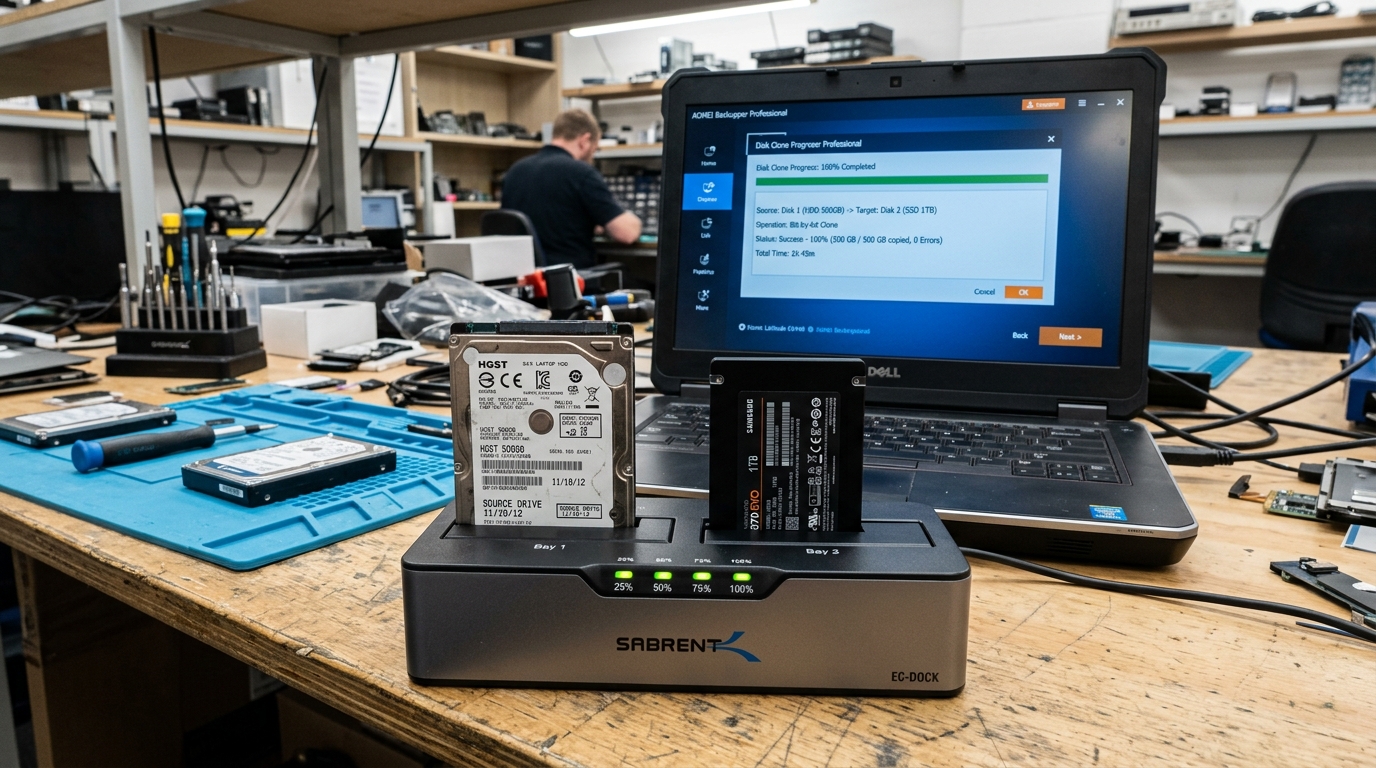 Authentic hardware cloning bench at Zitek Ahmedabad displaying high-speed standalone dual-bay SATA/NVMe hardware duplicators cloning a customer laptop drive live on-site.