
HP Laptop Not Charging When Plugged In? 7 Tested Fixes Before Replacing Battery
You plug your HP laptop into the hp laptop charger. The LED power indicator lights up—or maybe it blinks orange or white—and Windows displays the dreaded message: "Plugged in, not charging" (or the battery percentage stubbornly refuses to increase past 0% or 1%). In other cases, users report that their hp laptop battery draining fast even during light tasks, or notice hp laptop battery not charging at all after a recent software update.
You leave it plugged in for three hours, unplug the power brick to move to another room, and the laptop immediately dies.
Before you panic and assume you need to spend thousands on an hp laptop battery replacement, take a deep breath. At Zitek Techcare Ahmedabad, our hardware engineers diagnose dozens of HP laptops every single week across SG Highway, Nikol, Bopal, Satellite, and Gandhinagar. In nearly 35% of cases, an HP laptop that says "plugged in, not charging" is suffering from a firmware glitch, a corrupt Windows ACPI driver, a power surge lock, or a dirty DC charging jack—not a dead battery!
In this comprehensive, 3,000-word troubleshooting guide, we walk you through 7 field-tested hardware and software fixes used by professional technicians to resolve HP charging problems. Work through these steps in order before you replace any hardware.
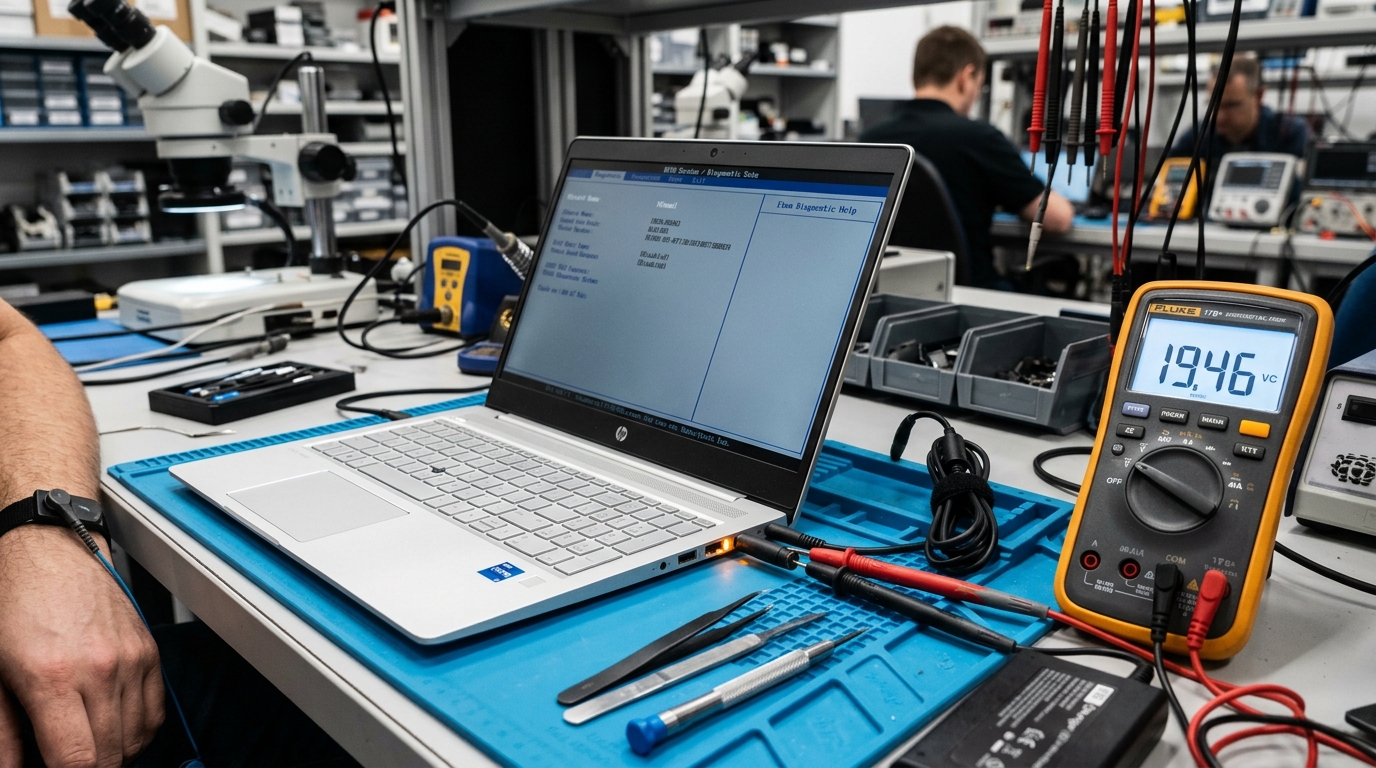 Diagnosing an HP laptop showing 'Plugged in, not charging' using a digital multimeter to measure DC charging rail voltages.
⚠️ Quick Safety Check: The 10-Second Physical Inspection
Before touching any software settings, perform this vital physical check:
- Check the Center Smart Pin in the HP Charger:
Most HP laptops (Pavilion, Envy, ProBook, Omen) use a round barrel connector (either 4.5mm blue-tip or 7.4mm black-tip). Look closely inside the metallic tip of your charger plug. Do you see a tiny, needle-thin metal pin in the exact center?- That tiny pin is not for power—it is a data communication pin that tells the HP motherboard: "I am an authentic 65W (or 90W/135W) HP charger."
- If that center pin is bent, pushed back, or broken, the laptop will turn on and run on AC power, but the motherboard will strictly refuse to charge the battery as a built-in safety protection!
- Inspect the Wall Socket & Extension Board:
Plug your charger directly into a reliable wall outlet without any loose power strips or surge protectors. - Feel the Power Brick:
After 15 minutes of being plugged in, is the charger brick warm? If it remains ice-cold, the internal capacitor has failed, and it is not outputting adequate current.
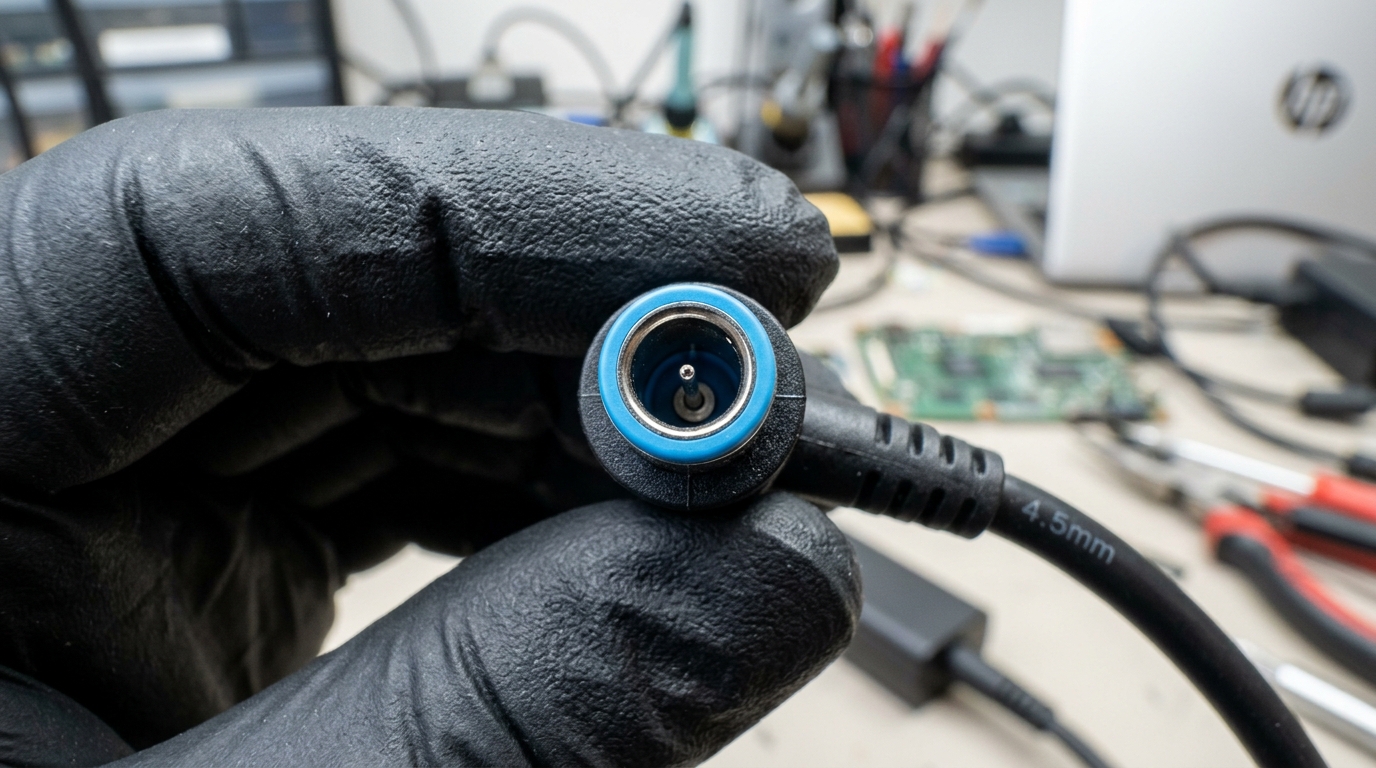 The microscopic central Smart Pin inside the HP Blue Pin barrel plug responsible for wattage identification and charging authorization.
If the physical charger and cable look intact, proceed immediately to Fix 1.
Fix 1: The HP Hardware Power Reset (Clearing Residual Flea Power)
Modern HP laptops contain capacitors on the motherboard that store residual electrical charge (often called "flea power"). When a minor power fluctuation or static charge builds up, the Embedded Controller (EC) chip on the motherboard locks itself into a protected state, freezing the battery charging circuit.
A hard power reset drains every drop of residual power and forces the EC chip to reboot.
How to Perform a Hard Reset on HP Laptops with Internal Batteries:
- Unplug the AC charger and disconnect any external USB drives, mouse, HDMI cables, or headphones.
- Ensure the laptop is powered completely off (Hold the power button for 10 seconds until all lights turn off).
- Press and hold the Power Button continuously for 20 to 25 seconds. (Do not let go early; this forces the capacitors on the motherboard to discharge completely).
- Release the power button.
- Plug ONLY the original HP AC adapter back into the laptop (do not connect any other peripherals).
- Press the power button once to turn the laptop on.
- Check the Windows taskbar: Does the battery icon now show the animated charging bolt?
💡 Technician's Insight: This single 25-second step resolves approximately 20% of all "plugged in not charging" tickets we receive across Ahmedabad offices and homes.
Fix 2: Reinstall the Windows Microsoft ACPI-Compliant Control Method Battery Driver
Windows controls how the battery communicates with the charger through a dedicated driver called the Microsoft ACPI-Compliant Control Method Battery. If this driver becomes corrupted after a Windows 11 update or an unexpected shutdown, Windows loses the ability to send the charging handshake to the battery.
Reinstalling this driver takes less than two minutes and frequently resolves the issue.
Step-by-Step Driver Reinstall:
- Right-click on the Start Menu button (or press
Win + X) and select Device Manager. - Expand the Batteries category. You should see two items:
- Microsoft AC Adapter
- Microsoft ACPI-Compliant Control Method Battery
- Right-click on Microsoft ACPI-Compliant Control Method Battery and select Uninstall device.
- A confirmation box will appear. Click Uninstall (Do not delete driver software if prompted).
- If you have an external removable battery, shut down the laptop, unplug the charger, remove the battery for 1 minute, put it back, and reconnect the charger.
- If your HP laptop has a sealed non-removable internal battery:
- In Device Manager, click the Action menu at the very top.
- Click Scan for hardware changes.
- Windows will instantly re-detect the hardware and reinstall a clean, fresh copy of the battery driver.
- Restart your laptop.
Check if your battery starts charging now.
Fix 3: Run the Official HP PC Hardware Diagnostics UEFI Tool
HP laptops have one of the best built-in diagnostic engines in the computer industry. It runs directly from the BIOS chip before Windows even boots, meaning Windows software bugs cannot interfere with the test.
This test will give you an exact, undeniable verdict: Is the hardware dead, or is it a software fault?
How to Run the HP Battery Test:
- Turn off your HP laptop completely.
- Plug the charger into the laptop.
- Press the Power button, and immediately start tapping the ESC key repeatedly (about twice a second) until the HP Startup Menu appears on the screen.
- Press F2 to enter HP PC Hardware Diagnostics UEFI.
- Click or use arrow keys to navigate to Component Tests.
- Select Power $\rightarrow$ select Battery.
- Click Run once.
Understanding the Test Results:
- PASSED (OK): The battery cells and charging circuit are in good health! The problem is 100% caused by Windows drivers, software power management, or a loose connector. You do NOT need a new battery.
- CALIBRATE: The battery works, but the internal sensor is out of sync with Windows. (See Fix 6 below to recalibrate).
- WEAK / NORMAL: The battery is aging but should still charge.
- REPLACE (Error Code: 601 or 605): One or more internal lithium polymer cells have permanently degraded or open-circuited. The safety circuit has locked the battery down permanently. You need a battery replacement.
- FAILURE (Failure ID Code): A 24-character hexadecimal failure ID indicates a hardware defect in the battery or charging circuit.
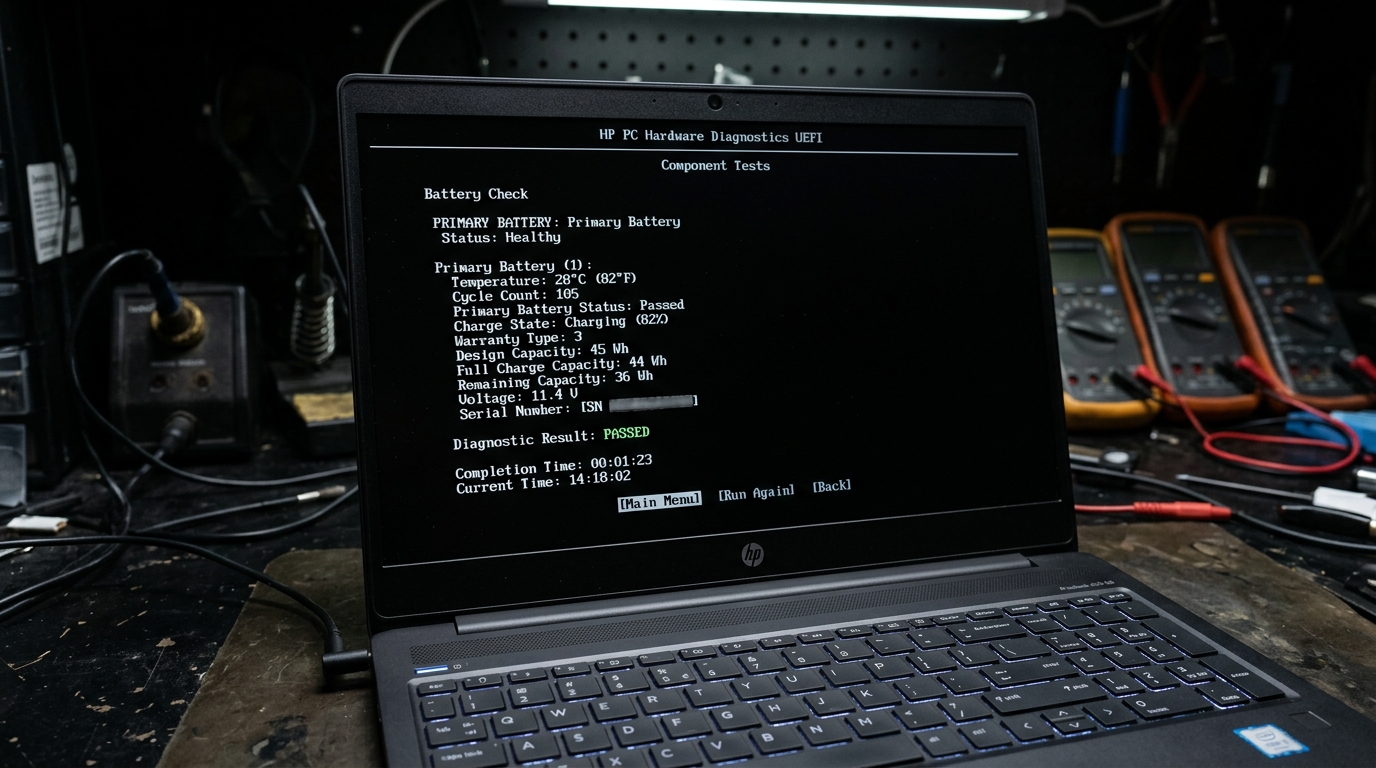 Pre-boot HP PC Hardware Diagnostics UEFI screen displaying live battery status, cycle count, and charging circuit test results.
Fix 4: Update or Roll Back the HP BIOS Firmware
HP frequently releases BIOS updates specifically addressing battery charging algorithms and thermal thresholds. For instance, several HP Pavilion 14/15 and Envy x360 models suffered from a bug where the BIOS miscalculated ambient battery temperature and refused to charge if the room temperature was above 35°C (which happens frequently during summer in Ahmedabad!).
How to Safely Check & Update HP BIOS:
- Open the HP Support Assistant application pre-installed on your laptop (or download it from HP's official website).
- Go to Updates and check for available firmware updates.
- If an HP Consumer Notebook BIOS Update is available, plug your laptop securely into the AC charger.
- Run the update. DO NOT touch the power button or turn off the laptop while the screen is black and fans are spinning loud during a BIOS flash.
- Once the update completes and Windows reboots, test the charging status.
Fix 5: Check HP Battery Health Manager in BIOS Settings
Many business-class HP laptops (such as the HP ProBook, EliteBook, ZBook, and newer Envy models) have a built-in feature in the BIOS called HP Battery Health Manager.
This feature is designed for people who keep their laptops plugged into chargers all day at office desks. To prevent the battery from swelling due to continuous high voltage, it artificially limits the maximum charge to 80% or 50%.
If you see your HP laptop plugged in and stopping at 50% or 80%, your battery is NOT broken!
How to Adjust Battery Health Manager:
- Turn off the laptop.
- Turn it on and immediately tap F10 repeatedly to open the BIOS Setup Utility.
- Use the arrow keys to navigate to the Advanced tab.
- Select Power Management Options.
- Look for Battery Health Manager.
- If it is set to "Maximize my battery health", it will intentionally cap your charge at 80%.
- Change the setting to "Let HP manage my battery charging" or "Maximize my battery duration".
- Press F10 to Save and Exit. Windows will now allow your battery to charge up to 100%.
Fix 6: Perform a Complete Manual Battery Calibration Cycle
Over months of irregular charging habits (plugging in at 40%, unplugging at 70%), the digital gas gauge microchip inside your HP battery loses track of the exact high and low chemical voltage points of the lithium cells. The battery might actually have 40% physical energy stored, but the chip reports 0% and shuts down the laptop.
Recalibrating resets the sensor:
- Charge to Full: Plug in your laptop and let it charge until it reaches the maximum percentage it can achieve.
- Let it Rest: Leave it plugged in for at least 2 hours to cool down the battery cells.
- Discharge Completely: Unplug the charger. Use the laptop continuously until the battery drops completely to 0% and the laptop forcefully shuts down.
- Deep Drain: Leave the laptop powered off and unplugged for 3 to 5 hours.
- Recharge Uninterrupted: Plug the AC charger back in and allow it to charge all the way to 100% without powering on the machine.
Fix 7: Inspect Motherboard Charging IC & DC Jack Soldering
If you have tried all six software and firmware fixes above, and the HP Diagnostic tool still says "Battery Not Detected" or "No Battery Present", the issue is at the motherboard component level.
Inside your HP laptop, power travels through a strict hardware chain:
- DC-IN Charging Jack: The physical socket where the charger enters. In many HP laptops, the center pin connector cracks off its small internal wire from being pulled or tripped over.
- First & Second Stage Input MOSFETs: These tiny electronic switches prevent reverse polarity and surge damage. If a power surge hits during Ahmedabad's monsoon season, these MOSFETs blow out to protect the CPU.
- The Battery Charging Controller IC (e.g., BQ24725 / BQ24780 / ISL Series): This microchip manages the step-down voltage needed to charge a 3-cell (11.55V) or 4-cell (15.4V) battery pack. If this chip is burnt, the laptop runs on adapter power but cannot supply voltage to the battery connector pins.
⚠️ Warning: Diagnosing a motherboard charging IC requires a digital multimeter, a thermal camera, and professional micro-soldering equipment. Do not attempt to probe motherboard pins with screwdrivers at home, as one short-circuit can permanently destroy your laptop's processor.
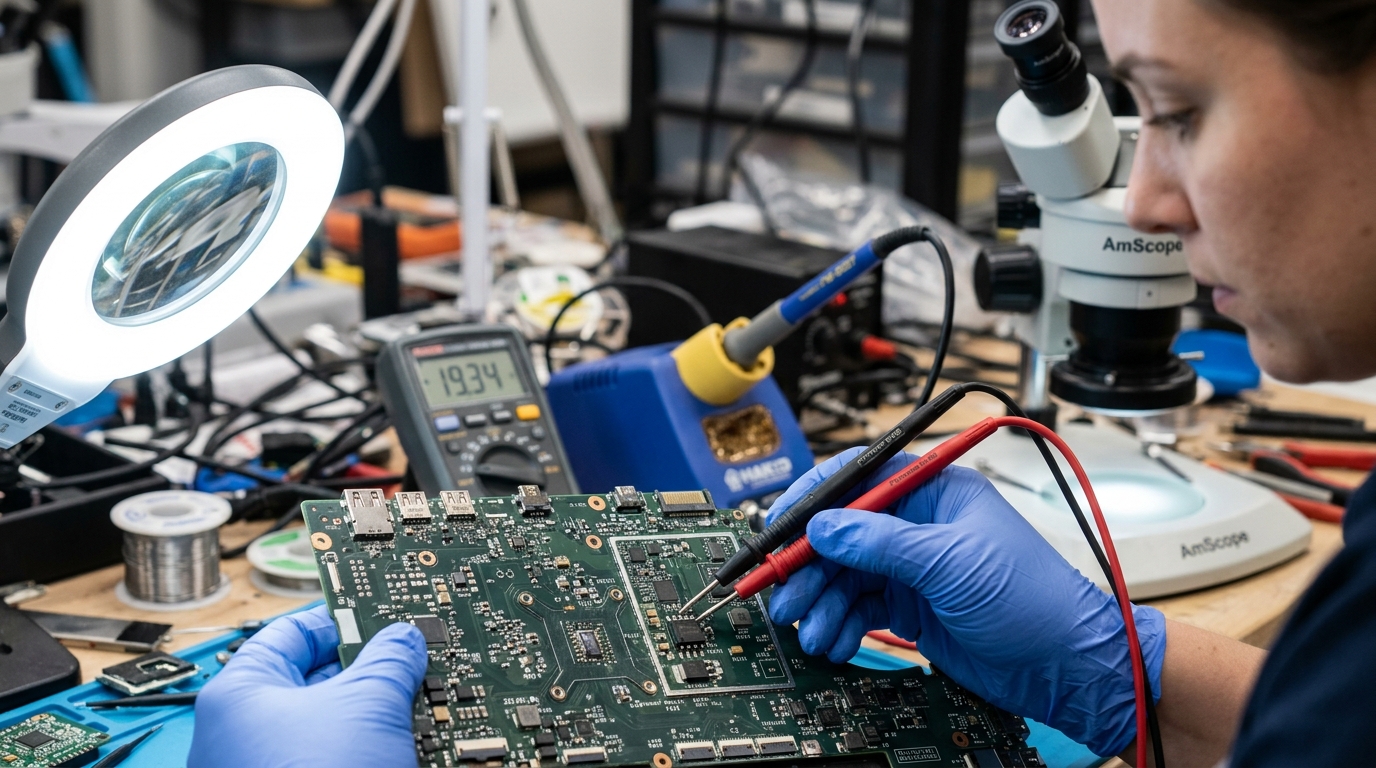 Testing input power MOSFETs and charging controller IC on an HP motherboard under microscope in our Ahmedabad repair facility.
📊 Summary: When to Repair vs When to Replace
| Diagnosis / Symptom | Root Cause | Recommended Action | Estimated Cost in Ahmedabad |
|---|---|---|---|
| "Plugged in, not charging" after Windows Update | Corrupt ACPI driver | Uninstall driver & Hard Reset | ₹0 (Free DIY) |
| Charger LED blinks orange / white continuously | Center smart pin broken or loose DC Jack | Replace DC-IN Jack cable | ₹600 - ₹1,200 |
| HP UEFI Test gives Error 601 / 605 | Dead internal lithium cells | Replace with hp laptop battery original | ₹2,200 - ₹3,800 |
| Laptop turns off immediately when adapter pulled | Blown thermal fuse inside battery pack | 100% Original Battery Replacement | ₹2,200 - ₹3,800 |
| Battery not detected, even with a brand new battery | Burnt Charging IC / MOSFET on motherboard | Chip-level BGA motherboard repair | ₹1,800 - ₹3,500 |
| Trackpad pushing upward / body expanding | Dangerous swollen lithium pouch | Emergency Immediate Replacement | ₹2,200 - ₹3,800 |
🛑 Why You Must NEVER Buy Fake "Compatible" Batteries in Local Markets
When checking the hp laptop battery price in Ahmedabad, many users consider local electronics markets on Relief Road or local unauthorized computer kiosks offering "HP Compatible" or "First-Copy" batteries for ₹1,200 to ₹1,500. Choosing an authentic hp laptop battery original ensures hardware safety and prevents permanent motherboard failure.
Here is why that cheap battery is a ticking time bomb:
- Missing Battery Management System (BMS): Genuine HP batteries contain intelligent Texas Instruments microcontrollers that monitor cell temperatures 50 times per second. Counterfeit batteries use cheap bypass circuits. When left plugged in overnight, they overheat and catch fire or swell up within 3 months.
- Low-Quality Recycled Cells: Fake batteries use cheap 18650 or pouch cells sourced from discarded industrial packs. They degrade from 4 hours of backup to 20 minutes in less than 90 days.
- Damaging Your Laptop's Motherboard: When a fake battery fails, it sends a high-voltage spike backwards into the motherboard's charging rail, frying the charging IC and CPU.
❓ Frequently Asked Questions (FAQ)
Why does my HP laptop say "Plugged In, Not Charging"?
This message typically occurs for one of three reasons: a corrupted Windows ACPI battery driver, an unseated or damaged center Smart Pin in your HP charger, or internal lithium cell failure where the battery's Battery Management System (BMS) shuts down charging to protect against overheating.
How do I fix an HP laptop that won't charge in Windows 11?
First, perform a hard power reset by unplugging the charger and holding the power button for 25 seconds. If that fails, open Device Manager, uninstall the "Microsoft ACPI-Compliant Control Method Battery" driver under Batteries, and restart your laptop. If the issue persists, run the HP PC Hardware Diagnostics UEFI test by tapping F2 at startup.
Why is my HP laptop charging light blinking orange or white?
A blinking orange or white LED next to the charging port indicates that the laptop detects an electrical connection, but charging cannot proceed. Common causes include a failing battery cell, an underpowered charger (e.g., using a 45W adapter on a 65W laptop), or a damaged center pin in the DC charging jack.
Can a faulty charger cause "Plugged In, Not Charging"?
Yes. HP chargers use a 3-wire system with a central Smart Pin. If this center pin is bent, oxidized, or damaged, the laptop cannot verify the charger's wattage rating and will refuse to supply charging current to the battery as a safety precaution.
How much does HP laptop battery replacement cost in Ahmedabad?
In Ahmedabad, replacement costs typically range from ₹1,800 to ₹2,800 for high-quality Grade-A compatible batteries, and ₹3,200 to ₹5,500 for genuine OEM batteries, including doorstep fitting and testing.
What does HP Battery Alert Error 601 mean?
Error 601 is a pre-boot UEFI diagnostic warning indicating that the primary internal battery's capacity has dropped below 25% of its original design specification. While the laptop can still run on AC power, the battery requires replacement for portable use.
Is it safe to use my HP laptop while plugged in if the battery won't charge?
Yes, as long as the battery is not physically swollen. However, if the battery is warm to the touch or causing the trackpad to bulge, disconnect and remove it immediately, as damaged lithium cells can pose a fire hazard.
How do I test my HP battery using the F2 key?
Turn off your laptop, connect the AC charger, turn it back on, and immediately tap the ESC key until the Startup Menu appears. Press F2 to launch HP PC Hardware Diagnostics UEFI, select Component Tests > Power > Battery, and choose "Run Once".
🚀 Need an Original HP Battery Replaced at Your Home in 60 Minutes?
Don't spend days leaving your laptop in a crowded repair shop where you worry about data privacy or parts swapping.
At Zitek Techcare, we offer 100% Transparent, Doorstep HP Battery Replacement across Ahmedabad and Gandhinagar:
- ⚡ Prompt Doorstep Service: Our certified hardware engineer arrives at your home or office with the exact battery model for your HP laptop.
- 🛡️ Verified Quality Batteries: Sourced from trusted manufacturers with genuine smart BMS microchips and warranty coverage.
- 👁️ Done Right in Front of Your Eyes: We inspect the charging circuit, install the new battery, run diagnostic tests, and verify performance before you pay.
- 📍 Serving All Ahmedabad Locations: SG Highway, Bopal, Sindhu Bhavan, Nikol, Satellite, Vastrapur, C.G. Road, Maninagar, Science City, Gota, Chandkheda, and Gandhinagar Sectors.
👉 Ready to restore your HP laptop to all-day battery life?
Explore our dedicated service page: HP Laptop Battery Replacement Ahmedabad or check our complete range of Laptop Battery Services in Ahmedabad.
📞 Call or WhatsApp Zitek Techcare directly: +91 90549 75943 for instant doorstep booking!

We are passionate hardware engineers who enjoy crafting engaging and informative repair guides. Apart from writing, you'll find our senior team exploring new tech trends and successfully reviving complex dead motherboards across Ahmedabad. We love discovering innovative concepts and bringing dead electronics back to life.