
Is your Dell laptop stuck showing "Plugged in, not charging"? Or every time you boot your Dell Inspiron, Latitude, or Vostro, does a black screen halt your boot with this warning:
"Alert! The AC power adapter wattage and type cannot be determined. The battery may not charge and the system performance may be degraded to accommodate power requirements. To resolve this issue, try to reseat the power adapter."
Before you waste ₹3,500 buying a brand new battery or replace your motherboard, stop! In over 80% of Dell laptops we service in Ahmedabad and Gandhinagar, the battery itself is physically healthy. The issue stems from a broken communication rail, a damaged center pin, a loose DC power jack, or a shorted charging controller IC.
In this deep component-level repair guide, our senior electronics engineers at Zitek demonstrate the exact hardware diagnostics, multimeter testing protocols, and repair solutions used to resolve Dell charging errors.
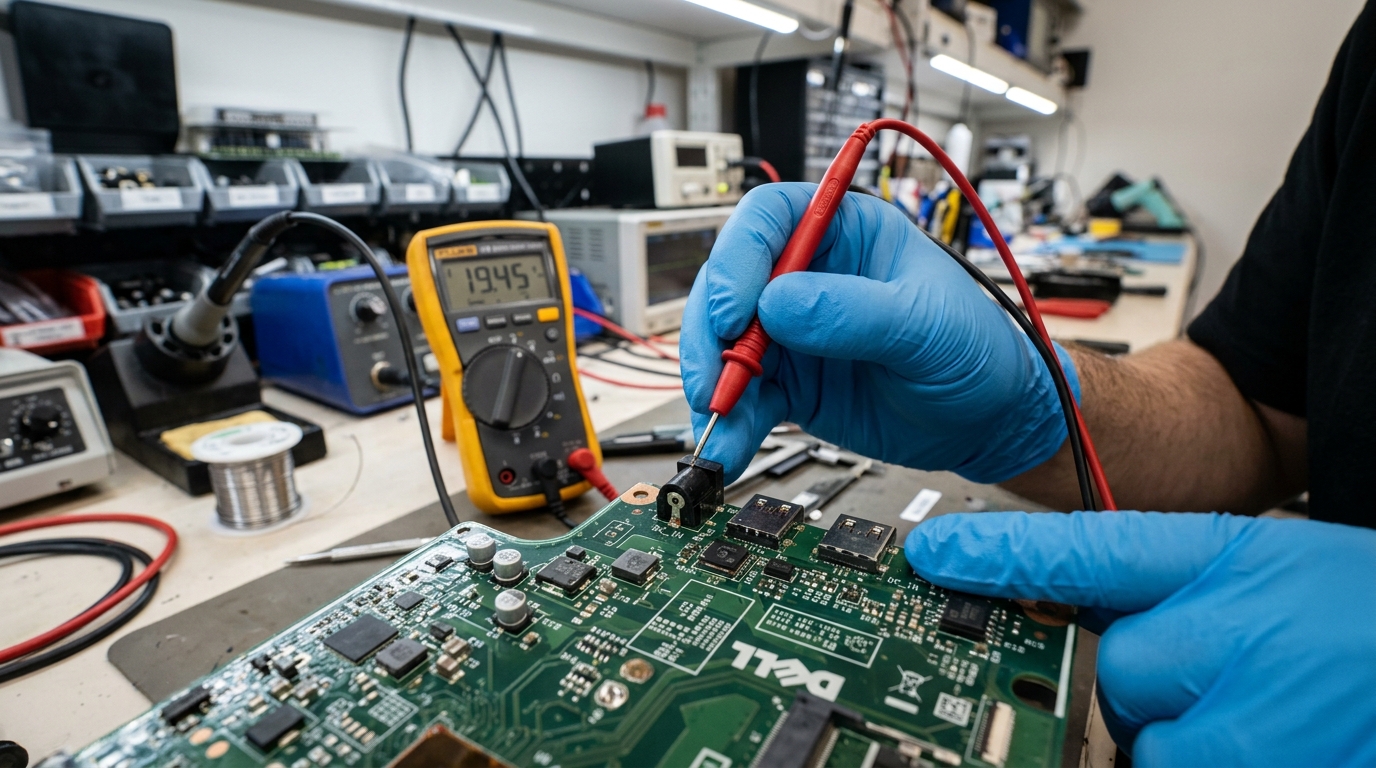 Senior motherboard engineer testing the Dallas 1-wire center pin signal rail and DC power jack connector using a digital multimeter at Zitek Techcare Ahmedabad.
Direct Answer: Why Does a Dell Laptop Say "Plugged In, Not Charging"?
Quick Answer (AEO Snippet):
A Dell laptop shows "Plugged in, not charging" because its Embedded Controller (EC) cannot authenticate the charger via the internal 1-wire center data needle (PS_ID). When this signal is interrupted, the laptop safely runs on AC wall power to avoid system shutdown, but the motherboard's power management circuit completely disables charging current to the battery. In 70% of cases, the fault is a bent center pin inside the charger, a cracked solder joint on the DC jack, or a burnt charging controller IC (BQ/ISL series)—not a dead battery.
2-Minute Diagnostic Table: Symptom vs Root Cause vs Repair Cost
Use this diagnostic matrix to pinpoint your exact hardware failure before spending money on unnecessary replacement parts:
| Visual Symptom & LED Indicator | BIOS Status (F12 Key) | Actual Hardware Root Cause | Solution & Repair Cost in Ahmedabad |
|---|---|---|---|
| "Plugged in, not charging" (Battery level stays static at 0% or low %) | AC Adapter: Unknown or None |
Bent, broken, or pushed-back center data pin in charger plug | Replace OEM charger (₹950 - ₹1,850) or live doorstep cable service |
| BIOS Black Screen Warning every boot requiring F1 to continue | AC Adapter: Unknown |
Broken DC Power Jack internal solder joint or damaged signal trace | Micro-solder new DC Power Jack connector (₹650 - ₹1,200) |
| Battery LED Blinks 4 Amber, 1 White continuously | Battery: Permanent Failure |
Lithium cells depleted below 2.5V BMS cutoff threshold | Install genuine Dell OEM battery with 1-Year Warranty (₹2,200 - ₹3,800) |
| Battery LED Blinks Solid Amber / Orange | Battery: Charging Error |
Burnt Motherboard Charging IC (Texas Instruments BQ series) | Chip-level micro-soldering under microscope (₹1,450 - ₹2,200) |
| Laptop Runs Sluggish / Throttled at exactly 0.79 GHz CPU clock | AC Adapter: Not Detected |
Embedded Controller throttling CPU to prevent brownout on unknown power | Resolve PS_ID signal line or replace faulty adapter |
The Center Pin Secret: How Dell's 1-Wire Communication Works
Most laptop owners assume the round charging plug on a Dell laptop contains two electrical connections: positive (+) and negative (-). On a Dell laptop, this is completely wrong.
A Dell cylindrical barrel connector (both 4.5mm Small Pin and 7.4mm Big Pin) possesses three distinct electrical lines:
      Outer Metal Barrel  ──────> GND (Ground / 0V)
      Inner Metal Barrel  ──────> +19.5V DC Power Rail
      Tiny Center Needle  ──────> PS_ID (Dallas 1-Wire Serial Data Line)
Inside the plastic molding of an original Dell power adapter sits a microchip (Dallas DS2501). When plugged in, the laptop's motherboard sends a 3.3V digital handshake query down the tiny center needle. The chip responds with:
- "I am an authentic Dell 65W adapter, serial number XYZ."
If that delicate needle bends slightly, touches the outer 19.5V barrel, gets dirty, or fractures internally:
- The 19.5V line still powers the laptop screen and processor.
- But the PS_ID data line is dead.
- Because the motherboard cannot confirm whether the charger is 45W, 65W, or 130W, the Embedded Controller immediately locks the battery charging circuit as a fire-prevention safety measure.
Step-by-Step Field Diagnostic: How Zitek Engineers Fix the Issue
When our certified hardware engineer arrives at your home or office in Ahmedabad, we follow a strict 4-step component-level diagnostic procedure:
Step 1: The Known-Good OEM Diagnostic Charger Test
We connect our calibrated workshop test adapter directly to your laptop. If your Dell laptop instantly begins charging and the battery icon animates, your laptop hardware is 100% fine—only your personal adapter has a severed center pin. You save thousands by simply replacing the adapter.
Step 2: Digital Multimeter Inspection of the Center Pin & DC Jack
If a known-good charger also fails to charge, our technician uses a precision digital multimeter to test the laptop's DC power jack:
- We measure the voltage between the inner barrel and the center pin on the motherboard connector.
- If voltage reads 0V instead of 3.3V, the DC jack's internal flex cable or motherboard solder pads have cracked due to trips over the charging wire.
- We replace or micro-solder a brand new OEM DC Power Jack on-site.
Step 3: Motherboard Charging IC & Dual MOSFET Inspection
If the DC jack delivers clean 3.3V on the PS_ID line, but charging current remains 0 Amps, the fault lies in the motherboard power circuit:
- We test the Charging Management IC (typically Intersil ISL88731 or Texas Instruments BQ247xx).
- In Ahmedabad homes, severe voltage fluctuations or lightning surges often punch a hole through the high-side N-Channel switching MOSFETs.
- Our chip-level lab replaces the burnt IC and mosfet under a high-magnification stereomicroscope, restoring factory charging without expensive motherboard replacement.
Step 4: BMS Lithium Lockout Reset
If the motherboard and charger test perfectly, but the battery refuses charge after being kept in a closet at 0% for months, the lithium cells have suffered "Deep Discharge". When individual cell voltage falls below 2.5V, the internal BMS microcontroller blows a thermal fuse to prevent dangerous charging of dead chemistry. In this scenario, we install a fresh, genuine Dell battery pack.
How to Run Dell's Built-In Hardware Diagnostic (ePSA) Yourself
You can diagnose your Dell laptop right now from home in Ahmedabad without any software:
- Shut down your Dell laptop completely.
- Connect your Dell AC power adapter.
- Power on the laptop and immediately start tapping the F12 key repeatedly until you see the One-Time Boot Menu.
- Use the arrow keys to select Diagnostics (or ePSA Pre-boot System Assessment) and press Enter.
- Once the quick test begins, click the Configuration or Battery icon on the bottom right.
- Check two critical lines:
- AC Adapter: If it reads
65W(or45W/90W), your charger and DC jack are healthy. If it readsUnknownorNone, your center pin or DC jack is broken. - Battery State: If it reads
ChargingorIdlewithHealth: Excellent/Good, the battery is fine. If it readsBattery ErrororEnd of Life, replacement is required.
- AC Adapter: If it reads
Generate Windows 11 Battery Degradation Report via CMD
To check whether your lithium capacity has physically degraded:
- Right-click the Windows Start menu and select Terminal (Admin) or Command Prompt (Admin).
- Type the following command and press Enter:
powercfg /batteryreport /output "C:\battery_report.html" - Open
C:\battery_report.htmlin Chrome or Edge. - Compare Design Capacity (e.g., 51,000 mWh) against Full Charge Capacity. If Full Charge Capacity has dropped below 15,000 mWh, the battery has physically exhausted its lifespan and must be replaced.
Zitek Doorstep Laptop Repair & Diagnostics in Ahmedabad
You never need to leave your confidential business laptop or personal computer at an unverified local shop. Zitek brings laboratory-grade diagnostics directly to your doorstep anywhere in Ahmedabad and Gandhinagar:
- Transparent On-Site Diagnostics: We test your charger, DC jack, and battery right in front of you. We never advise a replacement when a simple repair will solve the issue.
- 100% Genuine OEM Spares: Original Dell batteries and adapters with authentic Dallas DS2501 smart microchips.
- Coverage Across All Localities: SG Highway, Vastrapur, Prahladnagar, Bopal, Bodakdev, Satellite, Chandkheda, Gota, Nikol, and Gandhinagar Sectors 1 to 30.
- Official 1-Year Warranty & GST Bill: Complete peace of mind on all hardware replacements.
Doorstep Support Hotline: +91 90549 75943
Check service availability in your area: Browse Areas Served in Ahmedabad.
Frequently Asked Questions (FAQ)
Why does my Dell laptop only work when plugged into the charger, but dies immediately when unplugged?
How much does it cost to fix a Dell DC power jack or charging port in Ahmedabad?
Why is my Dell laptop running extremely slow when the charger is connected?
Can a motherboard charging IC be repaired without replacing the whole motherboard?
How can I check if the center pin on my Dell charger is broken?

We are passionate hardware engineers who enjoy crafting engaging and informative repair guides. Apart from writing, you'll find our senior team exploring new tech trends and successfully reviving complex dead motherboards across Ahmedabad. We love discovering innovative concepts and bringing dead electronics back to life.