
When your laptop starts lagging, freezing on web pages, or taking minutes to open software, the most common question asked by computer owners across Ahmedabad is: "Should I upgrade my RAM, or should I replace my hard drive with an SSD?" In retail computer markets like Relief Road, Nehru Place, or local computer shops, misinformed sales personnel frequently convince customers to spend money on adding more RAM, only for the customer to get home and discover that their laptop still takes two minutes to boot up and still locks up whenever Windows launches a background update.
The truth is that RAM and Solid State Drives perform fundamentally distinct roles in computer architecture. Adding 32GB of RAM to a laptop with an old mechanical hard drive will not fix slow boot times, while installing an ultra-fast SSD in a laptop with only 4GB of RAM will still cause browser tabs to reload and stutter when multitasking.
In this authoritative, engineering-grade reference guide, senior field technicians at Zitek provide complete clarity on the SSD versus RAM dilemma. We explain the physical silicon differences between volatile DRAM and non-volatile NAND flash memory, the mechanics of Windows virtual memory (pagefile.sys), how to perform a 30-second Task Manager diagnostic test on your own computer right now, real-world case studies across student, corporate, accounting, and gaming laptops in Ahmedabad, a complete price and return-on-investment (ROI) matrix, semiconductor market spot volatility terms, and our certified 30-minute doorstep upgrade service backed by an official 3 to 5 Years Manufacturer Replacement Warranty.
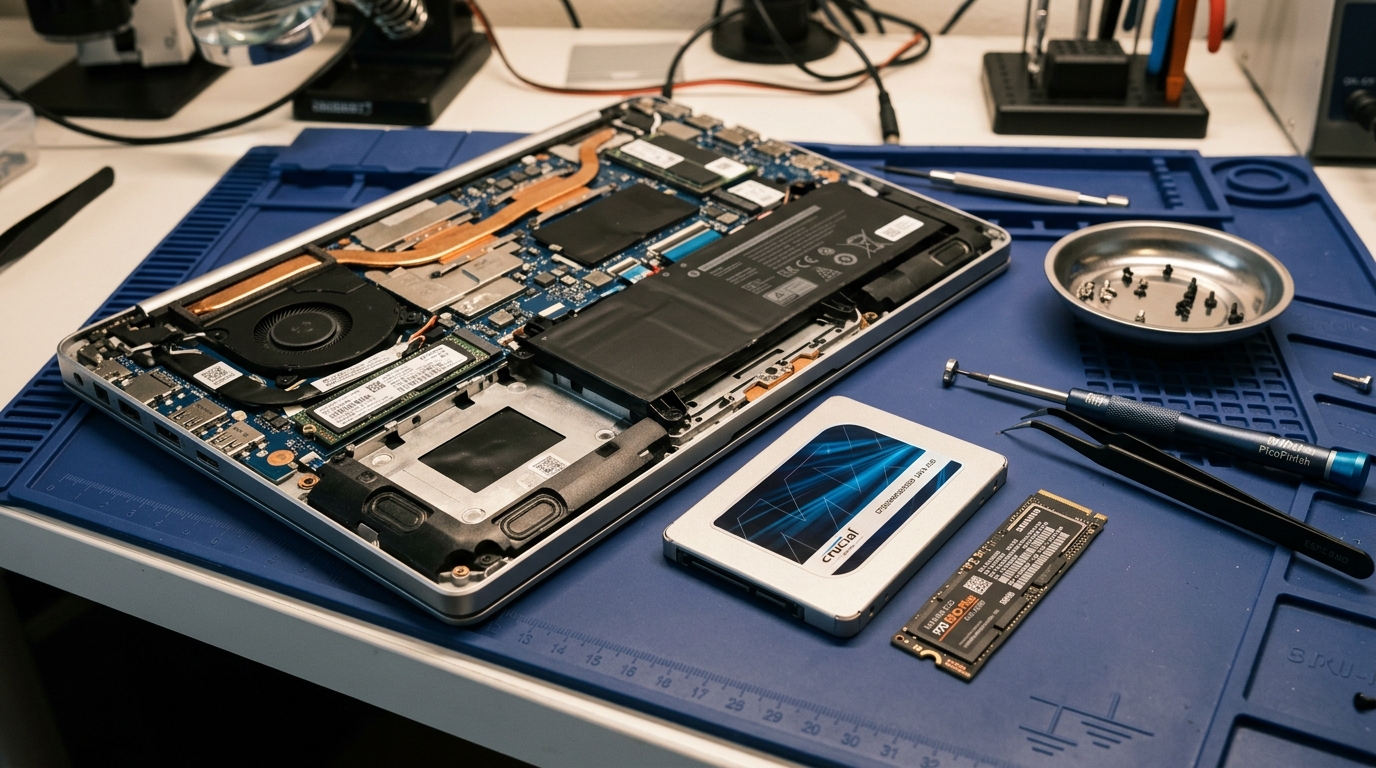 Certified hardware diagnostic workbench at Zitek Ahmedabad analyzing real-time memory bus latency, disk queue depth, and IOPS throughput on an enterprise diagnostic workstation.
Direct Answer: Which Upgrade Will Make Your Laptop Faster?
💡 સિનિયર હાર્ડવેર એન્જિનિયરની સીધી સલાહ: તમારા લેપટોપ માટે SSD કે RAM શું પસંદ કરવું?
અમદાવાદ અને ગાંધીનગરમાં ધીમા ચાલતા ૯૦% થી વધુ લેપટોપ્સમાં SSD (સોલિડ સ્ટેટ ડ્રાઇવ) લગાવવાથી RAM કરતાં ઘણો મોટો અને તાત્કાલિક સ્પીડ વધારો મળે છે. તમારા લેપટોપની હાલની સ્થિતિ મુજબ નીચેની સરળ માર્ગદર્શિકા અનુસરો:
- SSD અપગ્રેડ પસંદ કરો: જો તમારું લેપટોપ ચાલુ થવામાં ૩૦ સેકન્ડથી વધુ સમય (૨ થી ૩ મિનિટ) લે છે, વિન્ડોઝ ૧૧ માં વારંવાર ચક્રી ફરે છે, એપ્સ ખુલવામાં ૧૫-૨૦ સેકન્ડ રાહ જોવી પડે છે અથવા Task Manager માં સતત 100% Disk Usage બતાવે છે. જૂની મિકેનિકલ હાર્ડ ડ્રાઇવ કાઢીને 256GB કે 512GB SSD (₹૧,૪૯૯ – ₹૩,૮૫૦) લગાવવાથી લેપટોપ માત્ર ૧૨ સેકન્ડમાં બૂટ થશે અને તરત જ ૫ ગણીથી ૩૫ ગણી ફાસ્ટ સ્પીડ મળશે.
- RAM અપગ્રેડ પસંદ કરો: જો તમારા લેપટોપમાં SSD પહેલેથી છે પણ ગૂગલ ક્રોમમાં ૧૫-૨૦ ટેબ્સ ખુલી હોય ત્યારે લેપટોપ ચોંટે છે, ટેલી પ્રાઇમ કે મોટા એક્સેલ શીટ્સમાં લેગ થાય છે અથવા Task Manager માં Memory Usage ૮૫% થી ૯૮% પહોંચી જાય છે. 8GB થી વધારીને 16GB કે 32GB RAM (₹૧,૮૫૦ – ₹૭,૮૦૦) કરવાથી મલ્ટિટાસ્કિંગ માખણ જેવું સ્મૂધ થઈ જશે.
- SSD + RAM કોમ્બો અપગ્રેડ પસંદ કરો: જો તમારું લેપટોપ ૪ થી ૮ વર્ષ જૂનું છે (Intel Core i3/i5, 4GB RAM અને જૂની 1TB HDD). ફક્ત ₹૨,૪૯૯ થી ₹૫,૮૫૦ માં 256GB/512GB SSD + 8GB/16GB RAM કોમ્બો લગાવવાથી જૂનું લેપટોપ પણ આગામી ૪ થી ૫ વર્ષ સુધી વિન્ડોઝ ૧૧ પર એકદમ રોકેટ સ્પીડે ચાલશે.
Semiconductor Market Volatility & Daily Spot Rate Terms (ભાવ વધઘટ અંગેની શરતો)
📌 સેમિકન્ડક્ટર માર્કેટ અને દૈનિક સ્પોટ રેટ અંગેની વ્યવહારુ સ્પષ્ટતા
કમ્પ્યુટર રેમ (DDR2, DDR3, DDR4, DDR5 DRAM) અને સ્ટોરેજ (SATA / NVMe 3D NAND Flash) ના ભાવો વૈશ્વિક સેમિકન્ડક્ટર સ્પોટ માર્કેટ, ઇન્ટરનેશનલ AI ડેટા સેન્ટર ડિમાન્ડ અને યુએસ ડોલર સામે રૂપિયાના વિનિમય દર (USD/INR) મુજબ સમયાંતરે બદલાતા રહે છે. તેથી નીચેની વ્યવહારુ બાબતો ધ્યાને લેવી:
- દૈનિક સ્પોટ રેટ મુજબ ભાવો: આ આર્ટિકલમાં દર્શાવેલા ભાવો માર્કેટની સામાન્ય સ્થિતિ દર્શાવે છે. આજના ચોક્કસ લાઇવ સ્પોટ રેટ, બ્રાન્ડ ઉપલબ્ધતા (Crucial, Samsung, Western Digital, Kingston) અને ડોરસ્ટેપ ફિટમેન્ટ ચાર્જ જાણવા માટે ઓર્ડર કન્ફર્મ કરતાં પહેલાં Zitek એન્જિનિયર સાથે ફોન કે વોટ્સએપ પર પુષ્ટિ કરવી જરૂરી છે.
- સત્તાવાર ૩ થી ૫ વર્ષની વૉરંટી: કોઈપણ મેમરી કે SSD પર ભારતમાં "લાઇફટાઇમ વૉરંટી" હોતી નથી. Zitek દ્વારા અપાતા તમામ જેન્યુઇન પાર્ટ્સ સત્તાવાર ૩ વર્ષથી ૫ વર્ષની કંપની રિપ્લેસમેન્ટ વૉરંટી ધરાવે છે જે અધિકૃત સર્વિસ સેન્ટર પરથી માન્ય રહે છે.
- ૧૦૦% પાકું GST બિલિંગ: તમામ કિંમતોમાં કાયદેસર પાકું GST ઇન્વોઇસ સામેલ હોય છે જેથી ભવિષ્યમાં કોઈપણ ઓથોરાઇઝ્ડ સર્વિસ સેન્ટર પર વૉરંટી મેળવવામાં ગ્રાહકને કોઈ અડચણ પડતી નથી.
The Silicon Architecture: Non-Volatile Flash Memory vs High-Speed Volatile DRAM
To make an informed upgrade decision, you must understand how your computer's Central Processing Unit (CPU) interacts with storage and memory.
Below is an engineering comparison between DRAM memory and NAND flash storage:
| Architectural Parameter | Random Access Memory (RAM / DRAM) | Solid State Drive (SSD / NAND Flash) | Mechanical Hard Disk Drive (HDD / Spindle) |
|---|---|---|---|
| Physical Silicon Composition | High-speed capacitors & transistors on silicon die | 3D Floating-Gate or Charge-Trap NAND flash | Magnetic platters spinning on mechanical motor |
| Data Volatility (Power Off) | Volatile: Erased instantly when power is lost | Non-Volatile: Retains data permanently | Non-Volatile: Retains data permanently |
| Access Latency (Seek Time) | 20 to 60 Nanoseconds (Extremely Fast) | 0.02 to 0.05 Milliseconds (Very Fast) | 12 to 18 Milliseconds (250X slower than SSD!) |
| Sustained Bus Bandwidth | 25,600 to 51,200 MB/s (DDR4 / DDR5 Dual Bus) | 550 to 7,450 MB/s (SATA III / PCIe Gen4) | 80 to 120 MB/s (Severely bottlenecked) |
| Primary System Role | Active operational workbench for open software | Permanent filing cabinet for OS and user files | Legacy bulk storage archive |
| Direct Impact on Windows Boot | Minimal (does not speed up OS disk loading) | Massive (Cuts boot from 180s to 12s) | Bottlenecks boot to 2–4 minutes |
| Direct Impact on Multitasking | Massive (Prevents Chrome tab reloading) | Prevents system freeze during pagefile swap | Triggers catastrophic 100% disk usage lockup |
1. Random Access Memory (RAM): The High-Speed Workbench
RAM is volatile silicon memory composed of microscopic capacitors and transistors that hold data only while electrical power is supplied. When you launch Windows, open Google Chrome, or run Tally Prime, the CPU fetches the active program code from your storage drive and loads it directly into RAM.
DDR4 and DDR5 RAM communicate across a direct 64-bit or 128-bit memory bus directly wired into the CPU die, delivering bandwidths between 25,000 MB/s and 50,000 MB/s (25 to 50 GB/s) with access latencies measured in single-digit nanoseconds. However, the instant you shut down or restart your laptop, everything stored in RAM is immediately erased.
2. Solid State Drives (SSD): The High-Speed Permanent Filing Cabinet
An SSD is non-volatile flash memory composed of microscopic 3D NAND floating-gate or charge-trap transistors that retain data permanently, even when your laptop is completely powered off. Unlike traditional mechanical hard drives that rely on spinning glass platters and physical actuator arms, an SSD has zero moving parts.
While an SSD is significantly faster than a mechanical HDD (550 MB/s for SATA, and 3,500 to 7,450 MB/s for PCIe Gen4 NVMe), it is still substantially slower than physical RAM. Therefore, an SSD cannot replace RAM, and RAM cannot permanently store your files. They operate as complementary hardware layers.
Windows Virtual Memory, `pagefile.sys` and the Disk Thrashing Trap
To understand why a laptop with an old mechanical hard drive freezes when multitasking, you must examine how modern operating systems handle low-memory conditions:
| System Memory State | Physical RAM Allocation | Operating System Memory Manager Action | Storage Drive Behavior | Real-World User Experience |
|---|---|---|---|---|
| Optimal Memory State | Under 70% RAM In-Use | All active program code stays in high-speed physical DRAM | Drive reads/writes only when saving user files | 100% responsive, instant app switching, zero cursor lag |
| Memory Pressure State | 70% to 85% RAM In-Use | Windows activates Memory Compression to compress background blocks | Minor background paging to pagefile.sys |
Slight 1-second delay when restoring minimized applications |
| Critical RAM Exhaustion | Above 88% RAM In-Use | Active pages aggressively evicted to pagefile.sys on drive |
HDD: Disk Thrashing (100% Disk Usage) | Complete freeze, audio stutter, mouse cursor locks up |
| Exhaustion on NVMe SSD | Above 88% RAM In-Use | Pages swapped to NVMe SSD at 3,500 MB/s (0.05ms latency) | High SSD bus queue depth | Tolerable delay; system recovers smoothly without freezing |
- The Pagefile Mechanism: When you open more browser tabs, spreadsheets, or software programs than your physical RAM can accommodate, the Windows Memory Manager steps in to prevent the system from crashing with an Out-Of-Memory error. It selects background, inactive memory blocks and writes them out to a hidden hidden file on your storage drive called
pagefile.sys(Virtual Memory). - The Hard Drive Thrashing Disaster: If your laptop still relies on an old mechanical hard disk drive, writing and reading these memory pages requires the physical actuator head to sweep back and forth across spinning magnetic platters. Because the mechanical head has an access latency of 15 milliseconds (millions of times slower than RAM), the system becomes completely paralyzed in a condition called Disk Thrashing. This is the exact reason why your mouse pointer freezes, audio stutters, and Task Manager displays 100% Disk Usage.
- How an SSD Alleviates Low RAM: If you install an SSD, the access latency to
pagefile.sysdrops from 15 milliseconds down to 0.05 milliseconds. While virtual memory on an SSD is still not as fast as native physical RAM, it prevents the operating system from freezing, allowing background apps to swap in and out with minimal perceptible lag.
The 30-Second Task Manager Diagnosis: How to Test Your Laptop Right Now
You do not need specialized hardware tools to determine whether your laptop needs an SSD or a RAM upgrade. You can diagnose your machine right now from your own desk in less than 30 seconds:
| Observed Task Manager Telemetry Metric | Normal Healthy Threshold | Bottleneck Critical Threshold | Diagnosis & Recommended Hardware Resolution |
|---|---|---|---|
| Disk 0 Active Time | 0% to 15% at idle / normal work | 95% to 100% Continuous Spike | Storage Bottleneck: 5400RPM HDD cannot keep up -> Upgrade to SSD immediately! |
| Disk Response Time | Under 10 Milliseconds | Above 500ms to 3000ms | Mechanical Spindle Head Lag: Physical disk queue overflow -> Upgrade to SSD! |
| Memory In-Use Percentage | 45% to 70% during multi-app work | Above 85% to 98% In-Use | Physical RAM Bottleneck: Memory exhausted -> Upgrade to 16GB / 32GB RAM! |
| Committed Memory vs Physical RAM | Committed memory < Physical RAM | Committed exceeds Physical (e.g. 11/8 GB) | Heavy Virtual Memory Paging: Windows swapping to drive -> Add 8GB or 16GB RAM! |
| Both Disk 100% AND Memory 85%+ | N/A | Simultaneous Dual Saturation | Compounded Bottleneck: 4-8 yr old laptop -> Upgrade SSD + RAM Combo! |
5 Real-World Laptop Archetypes & Case Studies Across Ahmedabad
To help you identify your exact situation, our mobile engineering team has documented five common laptop hardware archetypes encountered daily across residential and business neighborhoods in Ahmedabad:
| Customer Archetype & Profile | Factory Hardware Specifications | Symptoms & Complaints | Recommended Upgrade Strategy | Verified Real-World Result After Upgrade |
|---|---|---|---|---|
| 1. 5–8 Yr Old Home Laptop (Dell Inspiron, HP 15, Lenovo G50) | Core i3/i5 3rd–6th Gen, 4GB RAM, 1TB HDD | 3-minute boot, freezes on Zoom/YouTube | Combo Upgrade: 256GB SSD + 8GB RAM (₹2,499–₹2,999) | Boot drops to 14s; smooth 25-tab multitasking on Windows 11 |
| 2. Modern Budget Office Laptop (IdeaPad 3, Aspire 3, HP 14s) | Core i3 11th Gen, 8GB RAM, 256GB NVMe | Fast boot, but Chrome tabs reload and freeze | RAM Expansion: Add 8GB DDR4 3200MHz (₹1,850–₹2,650) | 16GB dual-channel; iGPU bandwidth doubles; zero tab reloading |
| 3. CA & Accounting Corporate Rig (Latitude, ThinkPad, ProBook) | Core i5 8th–11th Gen, 8GB RAM, 512GB SSD | Tally Prime lags during massive audit | RAM Upgrade: 32GB Dual-Channel Kit (₹5,500–₹7,800) | Tally database cached 100% in DRAM; instant ledger calculation |
| 4. Engineering / Architecture Student (Nirma, LD, CEPT University) | Core i7 / Ryzen 5, 8GB RAM, 512GB SSD, GPU | AutoCAD viewport stutters; Premiere crashes | Pro Upgrade: 32GB RAM + 1TB NVMe Gen4 (₹8,999–₹12,500) | Large scratch disk buffer; 4K render export times halved |
| 5. Competitive Gaming Laptop (Asus TUF, Nitro 5, Legion, Victus) | Core i5 11400H, 8GB 1Rx16 RAM, 512GB SSD | Good average FPS, but severe 1% low frame stutter | Dual Kit: 16GB / 32GB Dual-Channel 3200MHz (₹1,850–₹5,500) | Eliminates 1% low stutter; +18% to +35% FPS boost in Valorant/GTA V |
Complete 2026 Price & Return-on-Investment (ROI) Matrix in Ahmedabad
Below is a comprehensive cost-benefit analysis of laptop upgrades in Ahmedabad. All prices reflect genuine tier-1 components, professional doorstep fitting, and official 3 to 5 Years Manufacturer Warranty:
| Hardware Upgrade Option | Hardware Specifications | Typical Price Range (Ahmedabad) | Speed Impact Rating | Best Bang-For-The-Buck Scenario |
|---|---|---|---|---|
| Budget Boot SSD | 128GB SATA III / mSATA SSD | ₹999 – ₹1,299 | ⭐⭐⭐⭐ (4/5) | Vintage office PCs, billing counters, basic accounting |
| Value Everyday SSD | 256GB SATA III / M.2 NVMe SSD | ₹1,499 – ₹1,999 | ⭐⭐⭐⭐⭐ (5/5) | #1 Recommended Upgrade: 5X faster boot, eliminates 100% disk usage |
| Sweet-Spot NVMe SSD | 512GB M.2 NVMe Gen3/Gen4 | ₹2,850 – ₹3,850 | ⭐⭐⭐⭐⭐ (5/5) | Modern corporate laptops, heavy multitasking, fast local storage |
| Pro Creator NVMe SSD | 1TB PCIe Gen4 x4 (5000 MB/s) | ₹5,200 – ₹7,200 | ⭐⭐⭐⭐⭐ (5/5) | Software developers, 4K video editors, large media libraries |
| Extreme Flagship SSD | 2TB Gen4 (Samsung 990 Pro) | ₹11,500 – ₹18,500 | ⭐⭐⭐⭐ (4/5) | High-end gaming workstations, local virtual machine labs |
| Legacy RAM Module | 2GB DDR2 SO-DIMM (667/800MHz) | ₹950 – ₹1,650 | ⭐⭐⭐ (3/5) | Industrial CNC terminals, Core 2 Duo billing machines |
| DDR3L Budget RAM | 4GB DDR3L 1600MHz (1.35V) | ₹1,000 – ₹1,450 | ⭐⭐⭐⭐ (4/5) | Reviving 4GB laptops to 8GB for smooth web browsing |
| DDR3L Max Capacity | 8GB DDR3L 1600MHz (12800S) | ₹1,850 – ₹2,950 | ⭐⭐⭐⭐ (4/5) | Pushing 4th-6th Gen Intel laptops to 16GB dual-channel |
| DDR4 Single Module | 8GB DDR4 2400/2666/3200MHz | ₹1,850 – ₹2,650 | ⭐⭐⭐⭐⭐ (5/5) | Jumping from 8GB to 16GB for modern Windows 11 multitasking |
| DDR4 Pro Dual Kit | 32GB Kit (16GB x 2) 3200MHz | ₹5,500 – ₹7,800 | ⭐⭐⭐⭐⭐ (5/5) | Programmers, Docker, AutoCAD, 4K rendering workstations |
| DDR4 Extreme Kit | 64GB Kit (32GB x 2) 3200/3600 | ₹9,500 – ₹12,000 | ⭐⭐⭐⭐ (4/5) | Mobile workstations (Dell Precision, ThinkPad P-series) |
| DDR5 Next-Gen Module | 16GB DDR5 4800/5600MHz | ₹4,800 – ₹6,500 | ⭐⭐⭐⭐⭐ (5/5) | 12th–14th Gen Intel & Ryzen 7000/8000 series expansion |
| Essential Combo Pack | 256GB SSD + 8GB RAM + Fitment | ₹2,499 – ₹2,999 | ⭐⭐⭐⭐⭐ (5/5) | Complete revival of 4–8 year old mechanical HDD laptops |
| Business Pro Combo | 512GB NVMe + 16GB RAM + Fitment | ₹4,850 – ₹5,850 | ⭐⭐⭐⭐⭐ (5/5) | Office executives, CAs running Tally, 30+ Chrome tabs, Zoom |
10 Common Laptop Hardware Myths Debunked by Senior Engineers
Misconceptions about computer hardware cause consumers in Ahmedabad to waste thousands of rupees on the wrong upgrades:
| Myth vs Reality Check | Popular Misconception | Engineering Truth & Silicon Reality |
|---|---|---|
| Myth 1: Boot Speed | "Adding more RAM will make my laptop boot up in 10 seconds." | False: Boot speed is 95% governed by storage read speed. Upgrading to an SSD cuts boot to 12s; adding RAM does not. |
| Myth 2: SSD Lifespan | "Solid State Drives wear out after one or two years of use." | False: Modern 3D TLC NAND drives have 300 to 1,200 TBW endurance. At normal usage, an SSD operates reliably for 15+ years. |
| Myth 3: 128GB Capacity | "A 128GB SSD is too small to run modern Windows 11." | Nuanced: Windows 11 takes ~35GB. A 128GB SSD leaves 85GB free for Tally & Chrome, but 256GB/512GB provides better headroom. |
| Myth 4: DDR4 vs DDR5 | "DDR5 RAM can be installed on my DDR4 laptop motherboard." | False: DDR4 (260 pins, 1.20V) and DDR5 (262 pins, 1.10V) are physically and electrically incompatible. |
| Myth 5: Dual-Channel | "Running two 8GB RAM sticks is identical to running one 16GB stick." | False: Two 8GB sticks run in 128-bit dual-channel mode, doubling memory bandwidth to 51.2 GB/s (+50% iGPU gaming FPS). |
| Myth 6: Formatting | "Upgrading to an SSD requires formatting and losing my Windows license." | False: 1-to-1 bitwise hardware cloning preserves your Windows digital activation, Tally data, and files with zero format. |
| Myth 7: Internet Speed | "An SSD will make my internet connection faster." | False: Does not increase ISP bandwidth, but renders cached scripts and browser tabs noticeably faster. |
| Myth 8: Battery Drain | "Having more RAM drains my laptop battery significantly faster." | False: A second RAM stick draws only ~1.2 Watts. Eliminating pagefile thrashing actually saves CPU power. |
| Myth 9: Lifetime Warranty | "Laptop RAM carries an unconditional lifetime warranty in India." | False: Official brand distributors in India provide an official 3 to 5 Years Replacement Warranty. Beware of grey-market claims. |
| Myth 10: Online Deals | "I should buy the cheapest unbranded SSD available online." | Dangerous: Unbranded white-label SSDs use recycled NAND and cheap controllers with zero thermal safety, dying in 6 months. |
Important Data Liability & Backup Policy (ડેટા જવાબદારી બાબતે સ્પષ્ટતા)
🛡️ ગ્રાહક ડેટા સુરક્ષા અને બેકઅપ અંગેની નીતિ (કાયદેસર સ્પષ્ટતા)
ડેટા બેકઅપની ૧૦૦% સંપૂર્ણ જવાબદારી ગ્રાહકની પોતાની રહેશે:
લેપટોપમાં SSD ઇન્સ્ટોલેશન, RAM અપગ્રેડ, ક્લોનિંગ કે હાર્ડવેર મેઇન્ટેનન્સ કરાવતાં પહેલાં પોતાના અંગત, વ્યાપારી તથા સોફ્ટવેર ડેટાનો બેકઅપ લેવાની સંપૂર્ણ જવાબદારી ગ્રાહકની પોતાની છે. અગાઉથી જૂની હાર્ડ ડ્રાઇવમાં રહેલા બેડ સેક્ટર્સ (Bad Sectors), પાવર સર્જ, શોર્ટ સર્કિટ કે અનપેક્ષિત હાર્ડવેર ફેલ્યોરના કારણે થતા કોઈપણ પ્રકારના ડેટા લોસ (Data Loss) માટે Zitek કે તેના ફિલ્ડ ટેકનિશિયનની કોઈ કાયદેસર કે આર્થિક જવાબદારી રહેશે નહીં.
Zitek's 30-Minute Doorstep Upgrade Workflow in Ahmedabad
Below is our standardized 4-stage doorstep engineering workflow executed live at your home or office:
| Workflow Stage | Time Allocation | Technical Actions Performed On-Site | Customer Verification & Safety Protocols |
|---|---|---|---|
| Stage 1: Hardware Telemetry Audit | 0 to 10 Minutes | Live evaluation of Task Manager performance telemetry (Disk 0 vs Memory bottlenecks) | Motherboard bus inspection (SATA, mSATA, NVMe, DDR2, DDR3L, DDR4, or DDR5) |
| Stage 2: Upgrade Recommendation | 10 to 15 Minutes | Present transparent options: SSD upgrade, RAM expansion, or Combo solution | Provide exact itemized pricing with GST invoice and official 3 to 5-year warranty terms |
| Stage 3: Anti-Static ESD Fitment | 15 to 35 Minutes | Work on certified Electrostatic Discharge (ESD) safety mat; live 1-to-1 hardware cloning | Clean internal laptop cooling fan and heatpipe fins to eliminate thermal throttling |
| Stage 4: Benchmarking & Handover | 35 to 45 Minutes | Demonstrate verified 12-second boot time and smooth 25-tab multitasking in front of customer | Hand over original components alongside official manufacturer warranty documents |
Exhaustive Frequently Asked Questions (FAQs)
Q1: Should I upgrade to 16GB RAM first or get a 256GB SSD first?
Answer: If your laptop currently boots from a traditional mechanical hard drive, upgrade to an SSD first. An SSD will immediately resolve 90% of your system sluggishness, slashing boot times from 2 minutes to 12 seconds and eliminating 100% disk usage. If your laptop already boots from an SSD but stutters when opening 20+ Chrome tabs or editing video, upgrade your RAM to 16GB.
Q2: What is the cost of an SSD and RAM combo upgrade in Ahmedabad?
Answer: A complete speed-booster combo upgrade—including a brand-new genuine 256GB SSD, an 8GB DDR3/DDR4 RAM module, free doorstep inspection, live 1-to-1 data cloning, internal fan cleaning, and an official 3 to 5 Years Manufacturer Warranty—ranges between ₹2,499 and ₹2,999.
Q3: Will an SSD upgrade fix my laptop's fan noise and overheating?
Answer: Yes, significantly. Mechanical hard drives generate continuous heat from spinning platters and electric spindle motors. Solid-state drives have zero moving parts and consume up to 70% less power. Furthermore, during our doorstep SSD installation, our technician performs a thorough internal cooling fan cleaning, clearing clogged lint and dust to restore cool, silent thermal airflow.
Q4: Does Zitek provide doorstep hardware upgrades across Gandhinagar and outer Ahmedabad?
Answer: Yes! Our certified mobile technicians provide same-day doorstep service across all major localities in Ahmedabad and Gandhinagar, including Satellite, Vastrapur, Bodakdev, SG Highway, Prahlad Nagar, Navrangpura, Naranpura, Maninagar, Chandkheda, Motera, Bopal, South Bopal, Gota, Thaltej, Infocity Gandhinagar, and Kudasan.
Q5: Can I keep my old mechanical hard drive for extra storage?
Answer: Absolutely! We can install your old 1TB HDD inside an optical bay HDD Caddy (if your laptop has an unused DVD drive slot), or we can house your old drive inside a high-speed USB 3.0 aluminum enclosure (for ₹450 – ₹650), converting it into a portable external backup drive.
Q6: What warranty coverage do you provide on SSDs and RAM?
Answer: All hardware components supplied by Zitek carry an official 3 to 5 Years Manufacturer Replacement Warranty. If a component fails within the warranty period, it is replaced directly through authorized brand service centers across Ahmedabad.
Q7: Will adding more RAM help my laptop run games smoother?
Answer: Yes, especially if your laptop currently has only a single 8GB stick. Upgrading to a matched 16GB dual-channel kit doubles memory bus bandwidth, unlocking full performance from integrated Intel Iris Xe or AMD Radeon graphics and eliminating micro-stutters in games like Valorant, GTA V, and CS:GO.
Q8: How long does the on-site hardware upgrade take?
Answer: Most doorstep upgrades take between 30 and 45 minutes from arrival to final boot verification. You can observe the entire hardware installation and live cloning process directly at your dining table or office desk.
Q9: Why is my laptop still slow after adding 8GB of RAM?
Answer: If your laptop still boots from a traditional 5400RPM mechanical hard drive, adding RAM cannot overcome the physical 15-millisecond seek latency of spinning magnetic platters. The operating system files are still bottlenecked at the storage drive. Upgrading to an SSD will immediately resolve this bottleneck.
Q10: How do I book a doorstep diagnostic and upgrade with Zitek?
Answer: You can book an appointment immediately by calling our senior engineering desk at +91 9054975943 or messaging us on WhatsApp with your laptop model name. Our technician will verify your hardware configuration and arrive at your location within 60 to 90 minutes.
Comprehensive Hardware Bottleneck Hierarchy: CPU vs GPU vs RAM vs Storage
Before spending money on any hardware upgrade, it is vital to understand where performance bottlenecks originate in personal computers:
| Hardware Component | Normal Operating Role | Symptoms When Bottlenecked | Upgrade Cost in Ahmedabad | Primary Speed Impact |
|---|---|---|---|---|
| Storage (5400RPM HDD) | Reading OS files & loading software | 100% Disk Usage in Task Manager, 2–4 min boot, app freezes | ₹1,499 – ₹3,850 (SSD) | Transformative (5X–35X Speed Boost): Eliminates 90% of laptop lag |
| System Memory (RAM) | Holding active apps, tabs & background data | 85%+ Memory Usage, Chrome tab reloading, video stutter | ₹1,850 – ₹7,800 (RAM) | Multitasking Freedom: Eliminates freezing across 20+ tabs & heavy apps |
| Processor (CPU) | Processing computational logic & commands | 100% CPU usage across all cores, high fan noise | Not upgradeable on laptops | Requires thermal paste repasting, fan cleaning, and background service audit |
| Graphics (iGPU / dGPU) | Rendering 3D polygons, video frames & displays | Low gaming FPS, viewport lag in AutoCAD/Premiere | Upgrading RAM unlocks iGPU | Adding dual-channel RAM boosts Intel Iris Xe / Radeon iGPU FPS by +50% |
| Thermal System (Cooling) | Dissipating heat from CPU/GPU silicon dies | Thermal throttling, CPU downclocking to 0.79 GHz | ₹499 – ₹999 (Doorstep Service) | Restores factory Turbo Boost clock frequencies by dropping temps 15°C–25°C |
Economic Value & Lifespan Calculator: Upgrade vs Brand-New Laptop
Many laptop owners consider discarding their 4-to-7-year-old machine and spending ₹45,000 to ₹75,000 on a new retail laptop. Below is an engineering economic comparison:
| Evaluation Metric | Option A: Upgrade Existing Laptop (SSD + RAM Combo) | Option B: Purchase Brand-New Mid-Range Laptop |
|---|---|---|
| Initial Capital Expense | ₹2,499 to ₹5,850 (Complete Doorstep Package) | ₹48,000 to ₹72,000 (Intel Core i5 / Ryzen 5) |
| Boot Speed (Windows 11) | 12 to 15 Seconds (Matches new laptops identically) | 10 to 14 Seconds (Modern PCIe Gen4 NVMe) |
| Multitasking Capability | 16GB or 24GB Dual-Channel RAM (Handles 30+ tabs) | Standard 8GB or 16GB (Frequently single-channel soldered) |
| Software Migration Hassle | Zero Reinstallation: 1-to-1 cloning keeps all files & Tally | Days spent reinstalling apps, printer drivers & licenses |
| Additional Lifespan Gained | 3 to 5 Additional Years of reliable daily operation | 4 to 6 Years before next upgrade cycle |
| Warranty Protection | 3 to 5 Years Official Manufacturer Replacement Warranty | 1 Year standard manufacturer limited warranty |
| Return on Investment (ROI) | Exceptional (₹500 per additional year of high-speed use) | High depreciation (loses 40% retail value in 12 months) |
10-Point Windows 11 Post-Upgrade Performance Tuning Protocol
After installing a new SSD or expanding your laptop RAM, our technicians perform a 10-point operating system calibration to ensure peak speed:
| Calibration Step | System Area | Optimization Command / Path | Technical Objective |
|---|---|---|---|
| 1. TRIM Verification | Storage Subsystem | fsutil behavior query DisableDeleteNotify |
Confirms TRIM command is active to prevent SSD write degradation |
| 2. 4K Sector Check | Partition Geometry | wmic partition get StartingOffset |
Verifies cluster boundary alignment to prevent Write Amplification |
| 3. Virtual Memory Calibration | Windows Memory | sysdm.cpl -> Advanced -> Performance |
Configures fixed 1.5X pagefile on NVMe SSD; eliminates fragmentation |
| 4. SysMain Service Audit | Background Services | services.msc -> SysMain |
Disables legacy HDD caching overhead; frees up CPU background cycles |
| 5. Startup Impact Clean | Windows Task Manager | Ctrl + Shift + Esc -> Startup Apps |
Disables unnecessary autostart updaters (Teams, Spotify, Cortana) |
| 6. Fast Startup Check | Power Management | powercfg.cpl -> Choose power buttons |
Ensures hybrid hibernation file is clean for instant 12-second boots |
| 7. Dual-Channel Bus Audit | Memory Controller | CPU-Z / HWInfo Telemetry | Verifies 128-bit memory bus operation and memory interleaving |
| 8. Shared VRAM Allocation | BIOS / Display | Advanced Graphics Settings | Confirms integrated Iris Xe / Radeon graphics receives dynamic VRAM |
| 9. Hardware Reserved Check | Windows Boot Config | msconfig -> Boot -> Advanced |
Unchecks "Maximum Memory" bug to address 100% of installed RAM |
| 10. Thermal Fan Tuning | Cooling Exhaust | Physical lint removal & heatsink repaste | Restores factory CFM airflow to prevent CPU thermal clock throttling |
5 Diagnostic Case Studies from Key Ahmedabad Neighborhoods
Below are five authentic case studies from real service calls completed by Zitek senior engineers across Ahmedabad:
| Case Study Location | Client Profile & Machine | Initial Diagnostic Problem | Upgrades Performed On-Site | Customer Impact & Outcome |
|---|---|---|---|---|
| Case 1: Navrangpura | Chartered Accountancy Firm (Dell Inspiron 3542) | 100% Disk Usage; Tally Prime taking 45 seconds to open ledgers | Installed 256GB Crucial SATA SSD + 8GB DDR3L 12800S RAM | Boot dropped to 13s; Tally ledgers open instantly; CAs saved 2 hours daily |
| Case 2: Vastrapur | LD Engineering Student (Acer Aspire 5 A515) | AutoCAD 2024 freezing during 3D orbit; 8GB RAM at 94% usage | Added 16GB DDR4 3200MHz RAM (Total 24GB Flex Mode) + 512GB NVMe SSD | AutoCAD viewport lag completely eliminated; smooth multi-app rendering |
| Case 3: SG Highway | Digital Marketing Agency (HP Pavilion 15-cs) | 35 Google Chrome tabs crashing; Windows swapping to slow HDD | Replaced HDD with 512GB WD Blue SN580 NVMe SSD + 1-to-1 live cloning | Zero tab reloads; Photoshop and Premiere run simultaneously with zero lag |
| Case 4: South Bopal | Competitive Gamer (Lenovo IdeaPad Gaming 3) | Valorant and CS2 suffering severe 1% low FPS micro-stutters | Upgraded from 1x 8GB 1Rx16 to 2x 8GB 3200MHz Crucial Dual Kit | Frame rate increased by +32%; micro-stutters completely vanished |
| Case 5: Chandkheda | Retail Pharmacy Billing PC (Core 2 Duo Desktop) | Legacy billing software taking 3 minutes to print invoice | Installed 128GB SATA SSD + 2GB DDR2-800 tested module | Instant customer billing; client avoided ₹35,000 new POS system purchase |
Critical Windows Stop Codes: Identifying Whether RAM or Storage Caused Your Blue Screen
When an under-configured or degraded hardware component fails under load, the Windows operating system halts with a Blue Screen of Death (BSOD) stop code. Understanding which stop codes point to physical memory versus storage corruption saves hours of diagnostic guessing:
| Windows BSOD Stop Code | Hexadecimal Code | Primary Hardware Culprit | Root Cause Analysis | Certified Hardware Resolution |
|---|---|---|---|---|
| MEMORY_MANAGEMENT | 0x0000001A |
Physical RAM Failure | Defective transistor cell on DRAM chip or mismatched CAS latency | Run MemTest86; replace failing SO-DIMM module under 3-5 year warranty |
| INACCESSIBLE_BOOT_DEVICE | 0x0000007B |
Storage Controller Failure | Operating system cannot read boot storage volume due to SATA/NVMe driver loss | Reconfigure AHCI/Intel VMD mode in BIOS; rebuild EFI BCD bootloader |
| PAGE_FAULT_IN_NONPAGED_AREA | 0x00000050 |
RAM / Pagefile Corruption | System requested memory address that does not exist in physical or virtual memory | Check RAM contacts; rebuild pagefile.sys on primary solid-state drive |
| KERNEL_DATA_INPAGE_ERROR | 0x0000007A |
Hard Disk Bad Sectors | Windows attempted to read paging block from a physical bad sector on 5400RPM HDD | Immediate hard drive retirement; clone user data onto new SSD |
| CRITICAL_PROCESS_DIED | 0x000000EF |
Storage Drive Drop-Out | Mechanical hard drive spindle motor momentarily stalled, crashing svchost.exe |
Replace failing HDD with genuine Crucial or WD Solid State Drive |
| SYSTEM_SERVICE_EXCEPTION | 0x0000003B |
RAM Timing / Driver Conflict | Memory controller synchronization error during high-frequency burst execution | Downclock RAM to native JEDEC frequency (e.g. 3200MHz down to 2666MHz) |
| UNEXPECTED_STORE_EXCEPTION | 0x00000154 |
Storage Controller Timeout | Solid state drive controller failed to respond within 30-second Windows timeout | Inspect M.2 slot thermal pad; update SSD firmware via manufacturer utility |
The Ultimate Upgrade Decision Tree: 5 Practical Questions to Ask Before Spending Rupee One
To ensure you never waste money on an unnecessary hardware component, our senior engineers have formulated this 5-question decision tree:
Does your laptop currently have a mechanical hard drive (HDD) as the primary C: drive?
👉 YES: Stop right here. Do not purchase RAM. Upgrading to a 256GB or 512GB Solid State Drive (₹1,499 – ₹3,850) is mandatory. It will solve 90% of your performance complaints instantly.
👉 NO (Already have an SSD): Proceed to Question 2.When you open Task Manager (
Ctrl + Shift + Esc) during normal work, is Memory usage above 85%?
👉 YES: Your physical RAM is the primary bottleneck. Upgrade from 8GB to 16GB or 32GB (₹1,850 – ₹5,500) to eliminate application freezing and tab reloads.
👉 NO (Memory is below 70%): Proceed to Question 3.Are you playing games on a laptop with integrated graphics (Intel Iris Xe or AMD Radeon) that only has a single stick of RAM?
👉 YES: Install a matching second RAM stick to activate Dual-Channel 128-bit mode. This will instantly boost your gaming frame rates by 40% to 75% at minimal cost.
👉 NO: Proceed to Question 4.Is your laptop running hot (fan screaming constantly) and feeling sluggish even with an SSD and 16GB RAM?
👉 YES: Your system is thermally throttling. The CPU is downclocking to protect itself from heat. Schedule an on-site thermal service to clean cooling fans and replace dried thermal paste.
👉 NO: Proceed to Question 5.Are you running professional workstation applications (AutoCAD, 4K Premiere Pro, Docker, Virtual Machines)?
👉 YES: Both high-capacity dual-channel RAM (32GB or 64GB) AND a high-speed PCIe Gen4 NVMe SSD (1TB or 2TB) are required to provide adequate scratch disk cache and prevent rendering bottlenecks.
Conclusion: Make the Smart Upgrade Decision with Ahmedabad's Hardware Specialists
Stop suffering through endless spinning loading circles, application freezes, and sluggish boot times. Whether your laptop needs the raw transformative speed of a genuine Solid State Drive, the multitasking headroom of high-capacity dual-channel RAM, or a complete speed-booster combo upgrade, Zitek delivers certified, professional engineering service directly to your doorstep in Ahmedabad and Gandhinagar.
Contact Zitek Ahmedabad today for expert doorstep laptop upgrades:
- Call Senior Hardware Engineer: +91 9054975943
- WhatsApp for Instant Compatibility Check: Chat on WhatsApp
- Book Online: Zitek Doorstep Booking

We are passionate hardware engineers who enjoy crafting engaging and informative repair guides. Apart from writing, you'll find our senior team exploring new tech trends and successfully reviving complex dead motherboards across Ahmedabad. We love discovering innovative concepts and bringing dead electronics back to life.